User Guide
Complete step-by-step documentation to help you get started with TourSyncer.
Last Updated: May 31, 2026
System Flow Overview
A complete walkthrough of the user journey from registration to organization management. Follow these steps to get started with TourSyncer.
Steps:
Step 1: Navigate to the registration page at https://app.toursyncer.com/user/register
Step 2: Create a new account using your email address or Google account
Step 3: Verify your email address via the verification link sent to your inbox (required for email sign-up)
Step 4: Log in to your account at https://app.toursyncer.com/user/login using your credentials
Step 5: Upon successful login, you will be directed to the Workspace page at https://app.toursyncer.com/workspace
Step 6: If you have no organizations, you will see a prompt to create your first organization

Step 7: Create a new organization at https://app.toursyncer.com/workspace/create by following the 4-step setup wizard
Step 8: After organization creation, you will be redirected to your organization dashboard where you can start managing your business
Video Tutorial
Click to enlarge
System Screenshot
Click to enlarge
How to Register a New Account

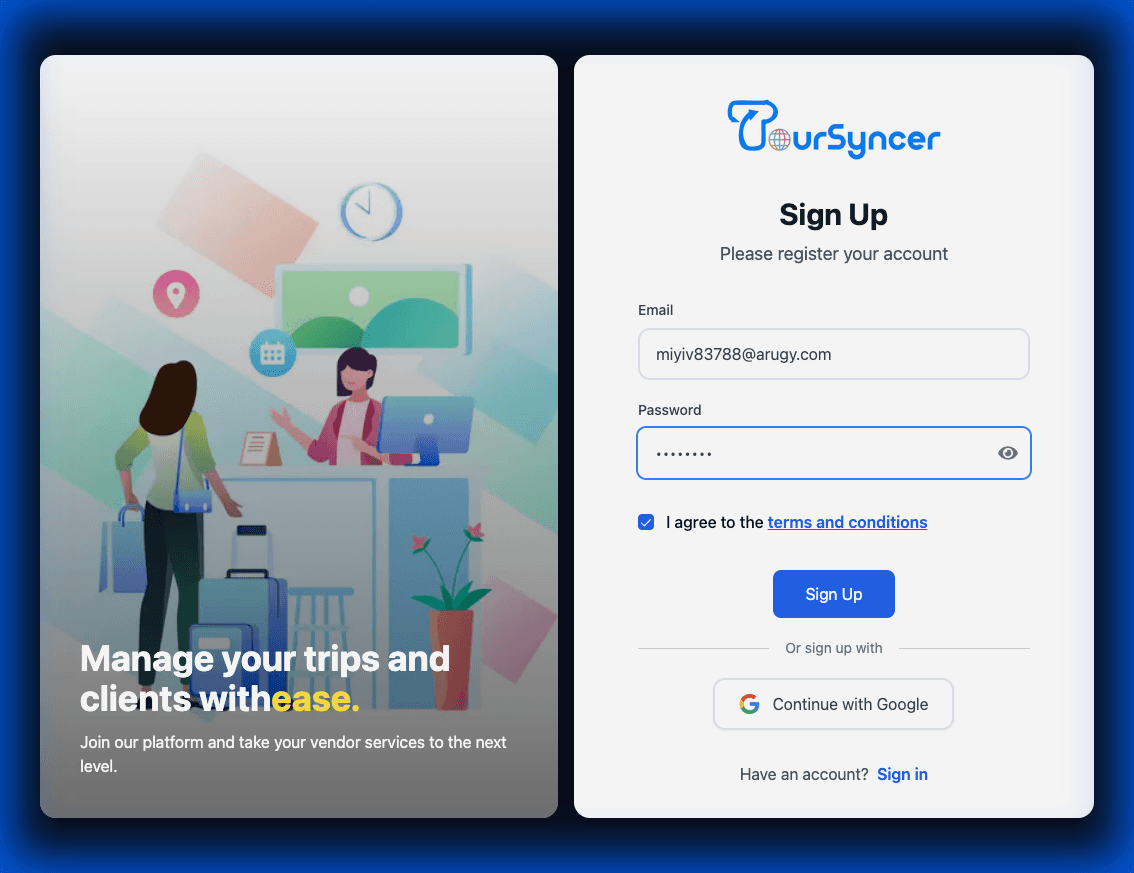
Create a new account to access the TourSyncer platform. You can register using your email address or Google account.
Steps:
Navigate to the registration page: https://app.toursyncer.com/user/register
📧 Option 1: Sign up with Email Address
•Enter your valid email address in the email field (e.g., [email protected])
•Create a secure password with a minimum of 6 characters (e.g., 1234****)
•Check the "I agree to the terms and conditions" checkbox
•Click the "Sign Up" button to create your account
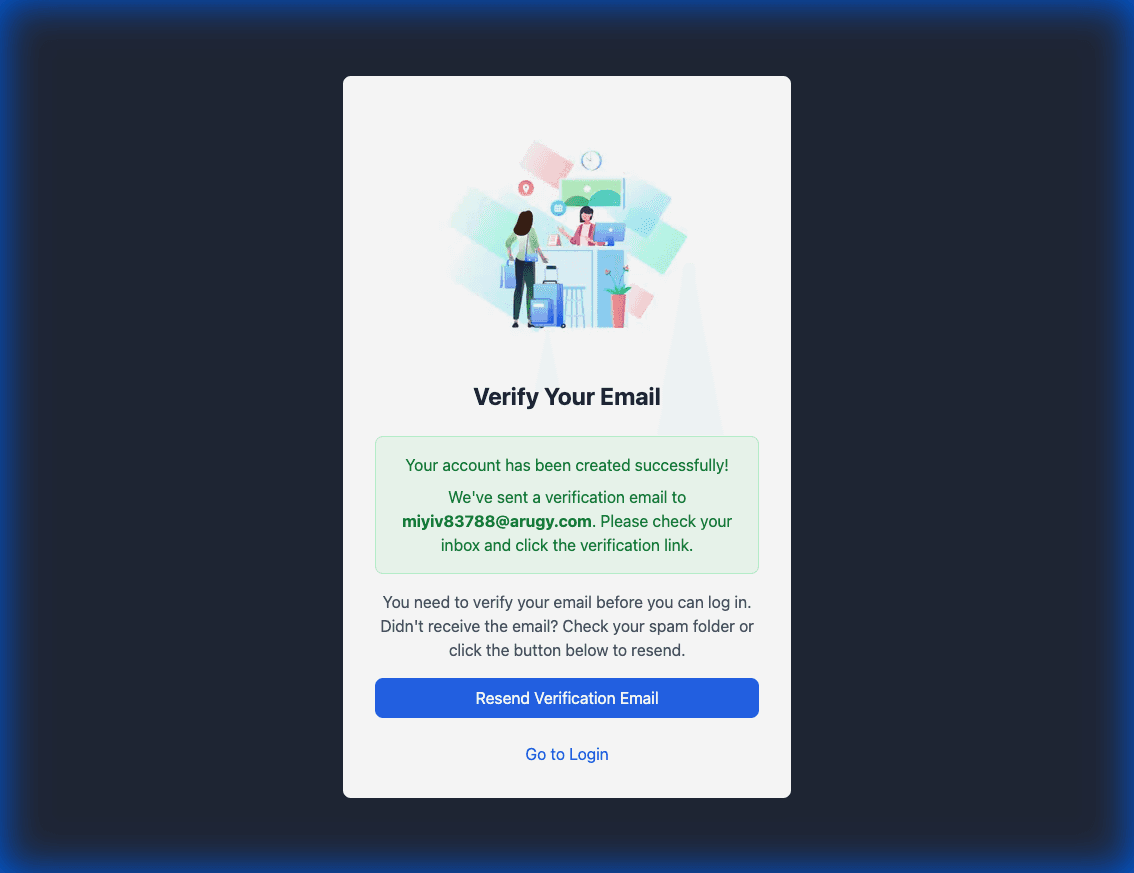
•After registration, you will see a verification screen
•Check your email inbox for a verification email from TourSyncer
🔵 Option 2: Sign up with Google
•Click the "Continue with Google" button
•Select your Google account from the popup window
•Grant necessary permissions when prompted
•Your account will be created instantly and you will be redirected to the workspace page
•Note: Google sign-up does not require email verification
⚠️ Important Notes:
•Email verification is required for email-based sign-ups before you can log in
•Keep your password secure and do not share it with anyone
•If you don't receive the verification email, check your Spam/Junk folder
Video Tutorial
Click to enlarge
System Screenshot
Click to enlarge
Email Verification Process
Email verification is a mandatory security step for accounts created with email addresses. This ensures the security of your account and allows you to receive important notifications.
Steps:
Step 1: After registration, check your email inbox for a message from TourSyncer
Step 2: Open the verification email (subject: "Verify Your Email" or similar)
Step 3: Click the "Verify Email" button or link provided in the email
Step 4: You will be redirected to the platform with a confirmation message
Step 5: Your email is now verified and you can proceed to log in
🔍 Troubleshooting:
•If you did not receive the email, check your Spam/Junk folder
•Wait a few minutes as emails may take time to arrive
•On the verification screen, click "Resend Verification Email" if needed
•Ensure you entered the correct email address during registration
•Check that your email provider is not blocking emails from TourSyncer
Video Tutorial
Click to enlarge
System Screenshot
Click to enlarge
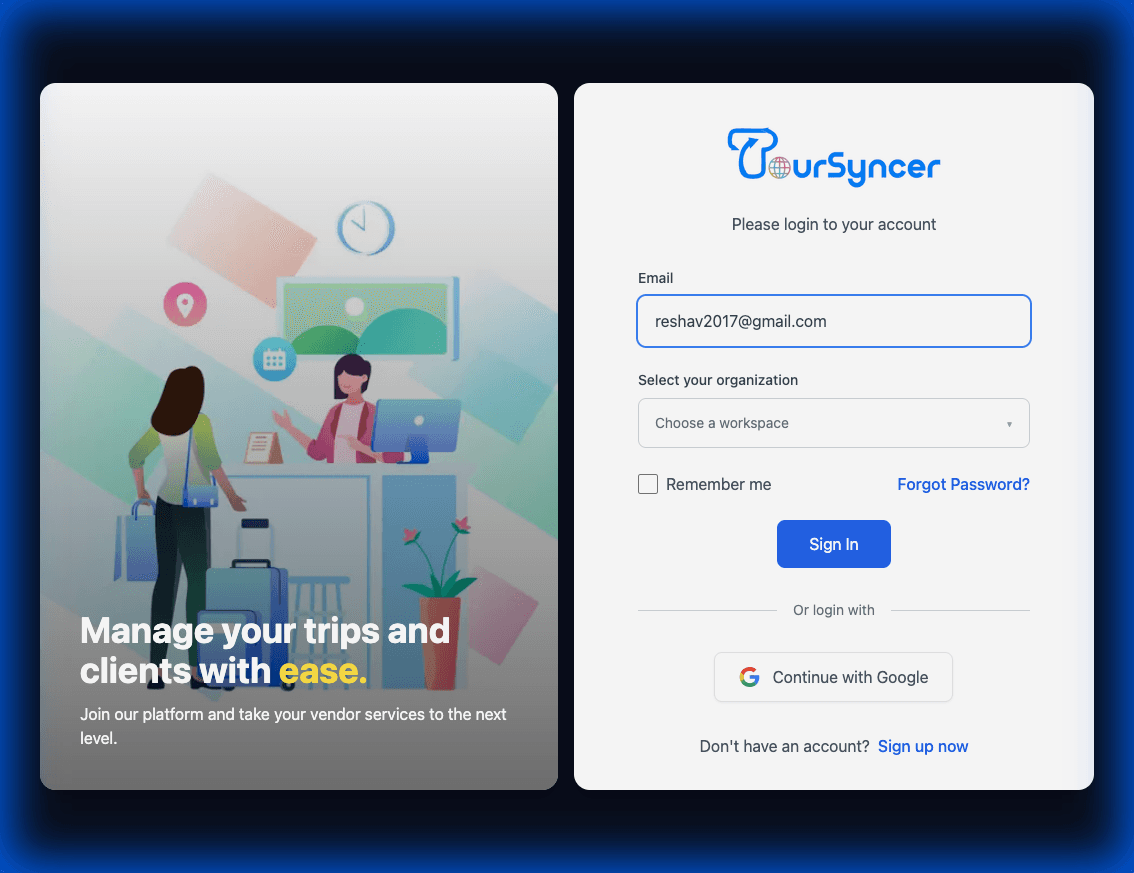

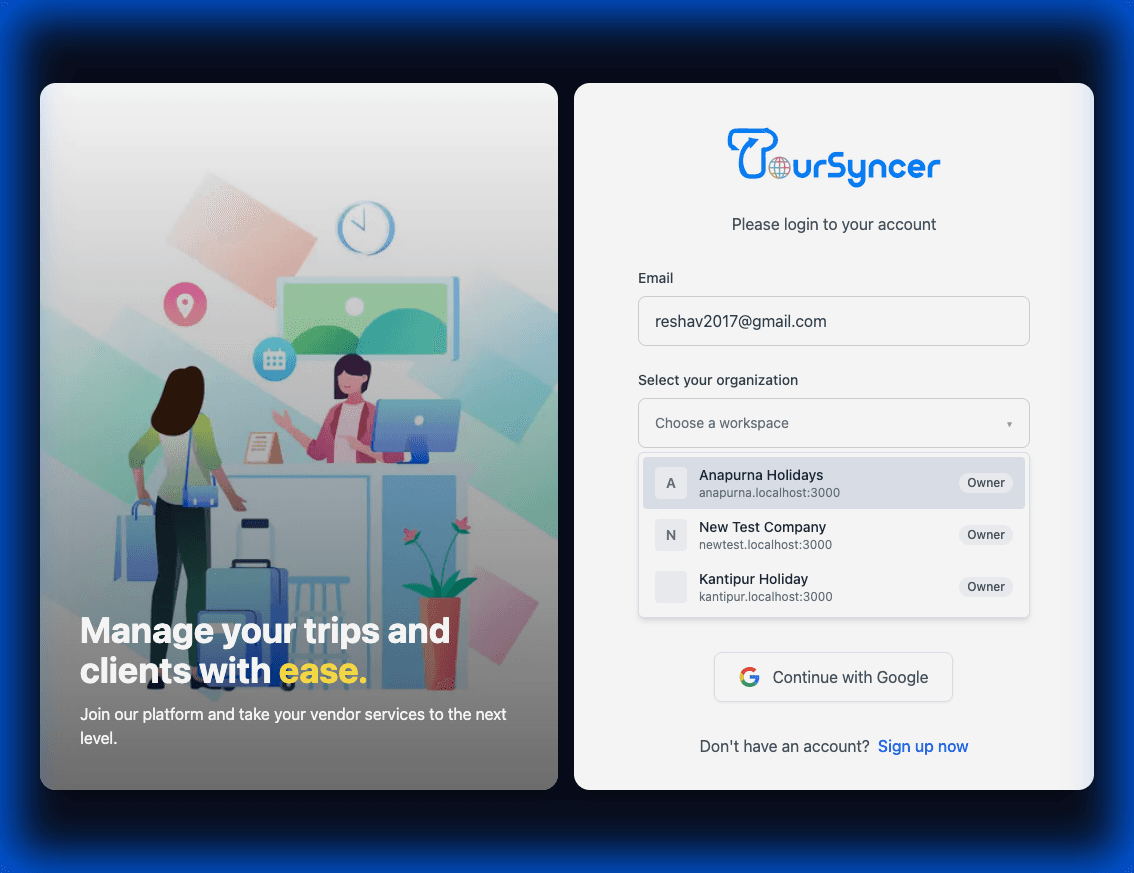
How to Login to Your Account
Access your account and organizations securely. You can log in using your email and password or Google account.
Steps:
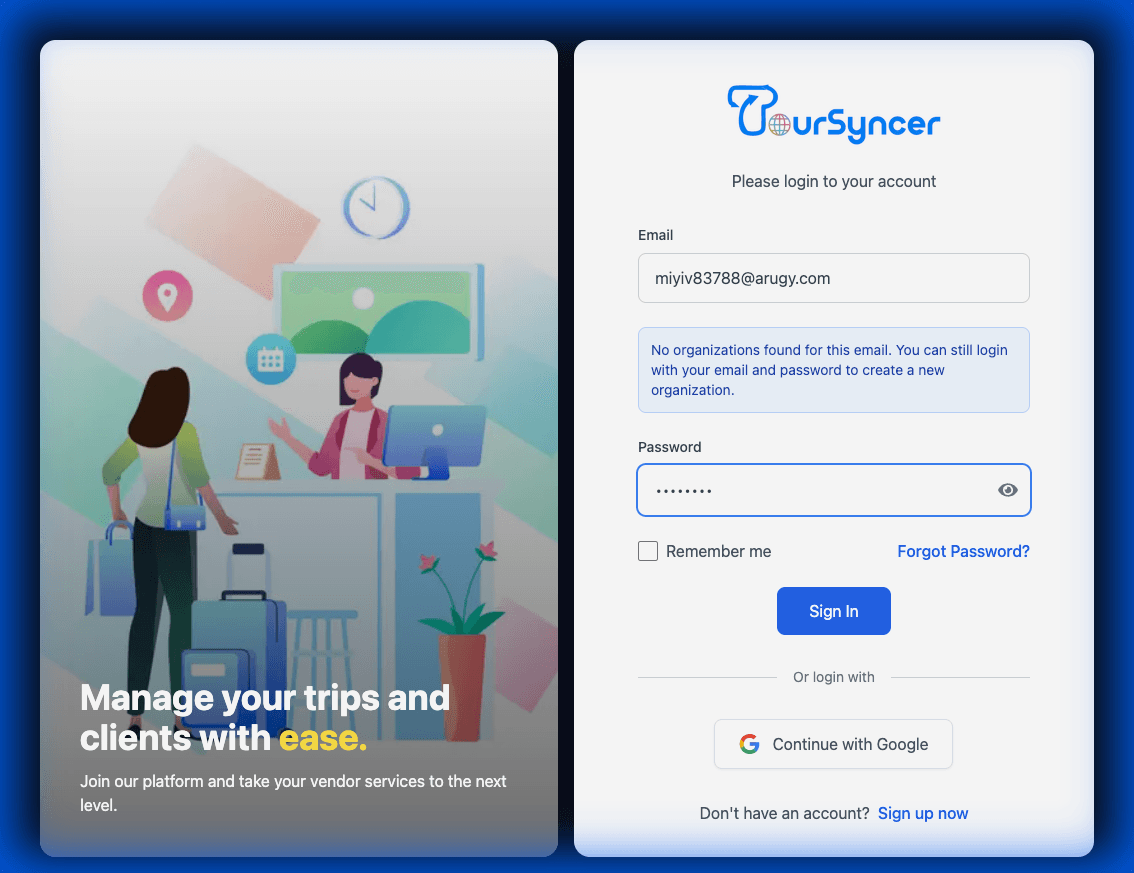
Step 1: Navigate to the login page at https://app.toursyncer.com/user/login
Step 2: Enter your login credentials
•Email Address: Enter your registered email address (e.g., [email protected])
•Password: Enter your account password (e.g., 1234*****)
Step 3: Workspace Selection (if applicable)
•If you have multiple organizations, a workspace selector will appear after entering your email
•Select the organization you want to access from the dropdown list
•Each organization card shows the company name and your role
Step 4: Optional Settings
•Check the "Remember me" checkbox to stay logged in on this device
•This will save your login session for convenience
Step 5: Sign In
•Click the "Sign In" button to authenticate
•Upon successful login, you will be redirected to your workspace or organization dashboard
🔵 Alternative: Google Login
•Click "Continue with Google" if you registered with Google
•Select your Google account and grant permissions
•You will be automatically logged in and redirected
🔑 Forgot Password?
•Click the "Forgot Password?" link below the login form
•Enter your email address
•Check your email for password reset instructions
•Follow the link to create a new password
Video Tutorial
Click to enlarge
System Screenshot
Click to enlarge
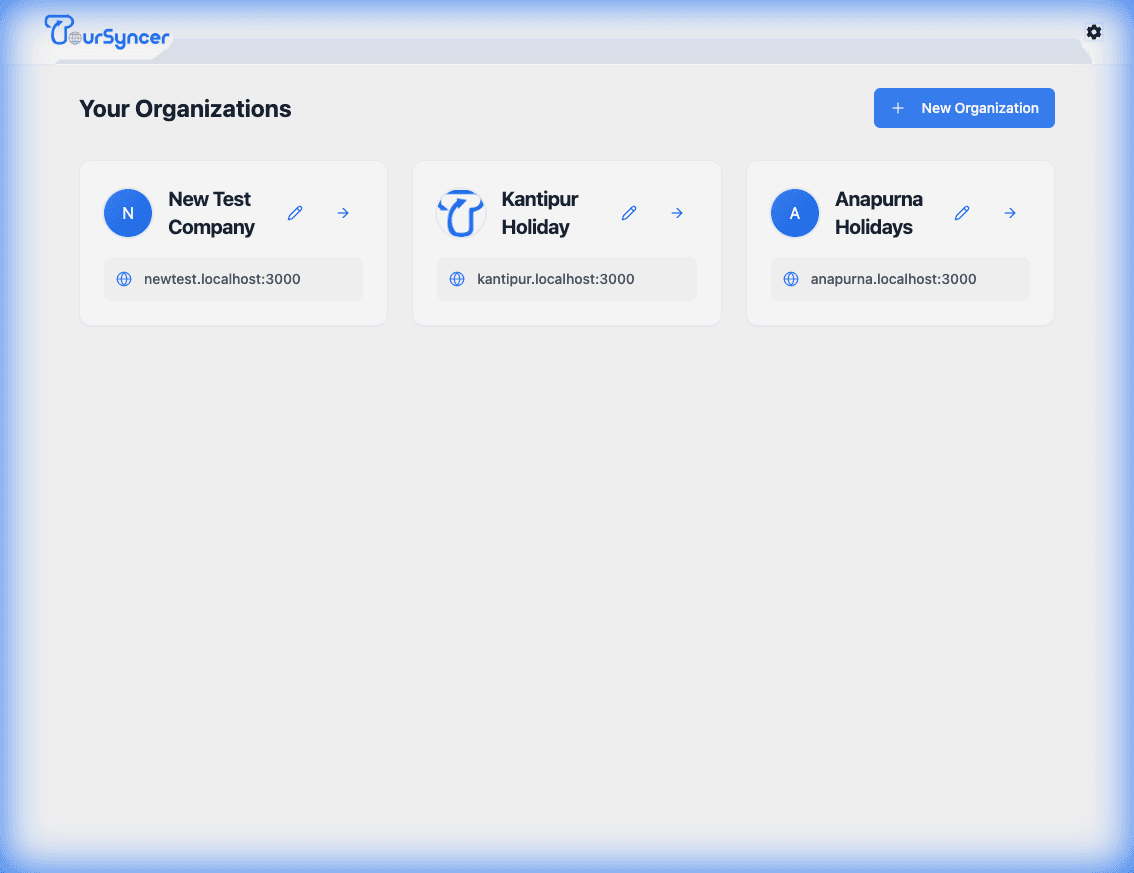

Workspace / Organizations Management
The Workspace page is your central hub for managing all organizations you own or belong to. From here, you can access different organizations, create new ones, and manage your business operations.
Steps:
Step 1: Access the Workspace page at https://app.toursyncer.com/workspace
•This page automatically loads after successful login
•You can also navigate here from the main menu
Step 2: View Your Organizations
•All organizations you own or belong to are displayed as cards
•Each card shows:
- Company/Organization name
- Your role in that organization (Owner, Admin, Staff, etc.)
- Organization logo (if uploaded)
Step 3: Access an Organization
•Click on any organization card to enter its dashboard
•You will be redirected to the organization's subdomain
•The dashboard provides access to all organization features
Step 4: Create a New Organization
•Click the "New Organization" or "Create Organization" button
•You will be redirected to the organization creation wizard
•Follow the step-by-step guide to set up your new organization
💡 Tips:
•You can belong to multiple organizations with different roles
•Each organization operates independently with its own settings
•Switch between organizations easily from the workspace page
Video Tutorial
Click to enlarge
System Screenshot
Click to enlarge

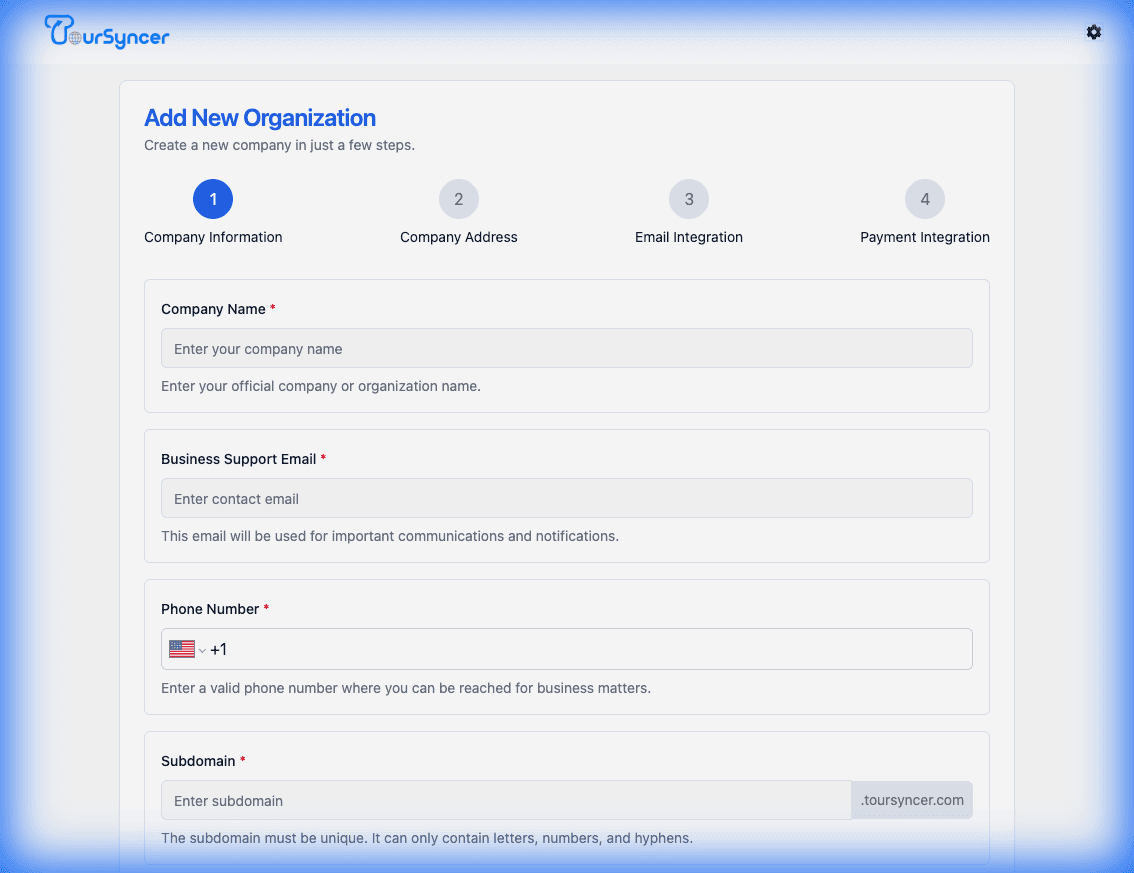
Create a New Organization - Step by Step Guide
Set up a new organization using our intuitive 4-step setup wizard. This process guides you through company information, address, email integration, and payment setup.
Steps:
Step 1: Navigate to the organization creation page at https://app.toursyncer.com/workspace/create
•You can access this from the Workspace page by clicking "New Organization"
•Or directly navigate to the URL if you have no existing organizations
📋 STEP 1: Company Information
Fill in the following required fields:
•Company Name (Required)
- Enter your official business or organization name
- Example: "ABC Travel Agency" or "XYZ Tours"
- This name will be displayed to your clients
•Business Support Email (Required)
- Enter the email address used for client communications
- This email will receive important notifications and customer inquiries
- Example: [email protected]
•Phone Number (Required)
- Enter your business contact number
- Use the phone input with country code selector
- Format: +1 (555) 123-4567
•Subdomain (Required)
- Choose a unique subdomain identifier
- Format: lowercase letters, numbers, and hyphens only
- Example: "myagency" creates myagency.toursyncer.com
- The system will check availability automatically
- If taken, try variations like "myagency-nyc" or "myagency2024"
Click "Next" to proceed to Step 2
📍 STEP 2: Company Address
Enter your complete business address:
•Address Line 1 (Required)
- Enter your street address and number
- Example: "123 Main Street"
•Address Line 2 (Optional)
- Enter additional address details if needed
- Example: "Suite 100" or "Building B, Floor 3"
•City (Required)
- Enter your city name
•State/Province (Required)
- Select or enter your state or province
•Country (Required)
- Select your country from the dropdown
•Zip/Postal Code (Required)
- Enter your postal or zip code
Click "Next" to proceed to Step 3
📧 STEP 3: Email Integration
Choose how you want to handle email sending:
Option A: Use TourSyncer's Default Email Service
✓Check "Use TourSyncer's default email service"
✓We handle email sending for you
✓Includes up to 1,000 emails per month
✓No additional configuration needed
✓Best for: Getting started quickly
Option B: Set Up Later
✓Check "Set up email integration later"
✓Configure SMTP settings in dashboard later
✓You can set up custom SMTP credentials anytime
✓Best for: Advanced users with custom email servers
Click "Next" to proceed to Step 4
💳 STEP 4: Payment Integration
Choose your payment processing option:
Option A: Use Default Payment Processing
✓Check "Use TourSyncer's default payment processing"
✓Click "Apply Now" button to submit application
✓We handle payment processing with pre-configured Stripe integration
✓Application review required before activation
✓Best for: Most users who want integrated payments
Option B: Set Up Later
✓Check "Set up payment integration later"
✓Configure Stripe keys in dashboard later
✓You can add payment settings anytime after creation
✓Best for: Users who want to configure their own Stripe account
•Terms and Conditions (Required)
✓Check the "I agree to TourSyncer's Terms of Service and Privacy Policy" checkbox
✓Read the terms by clicking the links provided
✓This is required to complete organization creation
✅ Final Step: Submit
•Review all information you've entered
•Ensure all required fields are filled correctly
•Click the "Submit" or "Create Organization" button
•Wait for the system to process your request
•Upon success, you will be redirected to your new organization dashboard
•A success message will confirm your organization creation
🎉 Congratulations! Your organization is now set up and ready to use.
Video Tutorial
Click to enlarge
System Screenshot
Click to enlarge
Switch Between Organizations
Easily navigate between multiple organizations you belong to. This feature allows you to manage different businesses or work with different teams seamlessly.
Steps:
Method 1: From Workspace Page
•Navigate to the Workspace page
•View all your organizations displayed as cards
•Click on the organization card you want to access
•You will be redirected to that organization's dashboard
Method 2: From Organization Dashboard
•Look for the organization switcher in the sidebar or header
•Click on the current organization name/logo
•Select a different organization from the dropdown menu
•You will be switched to the selected organization
Method 3: Direct URL Access
•Each organization has its own subdomain
•Access directly via: https://your-subdomain.toursyncer.com
•You may see a brief verification screen if switching subdomains
💡 Tips:
•Your session remains active when switching organizations
•Each organization maintains its own settings and data
•Your role and permissions may differ between organizations
Video Tutorial
Click to enlarge
System Screenshot
Click to enlarge
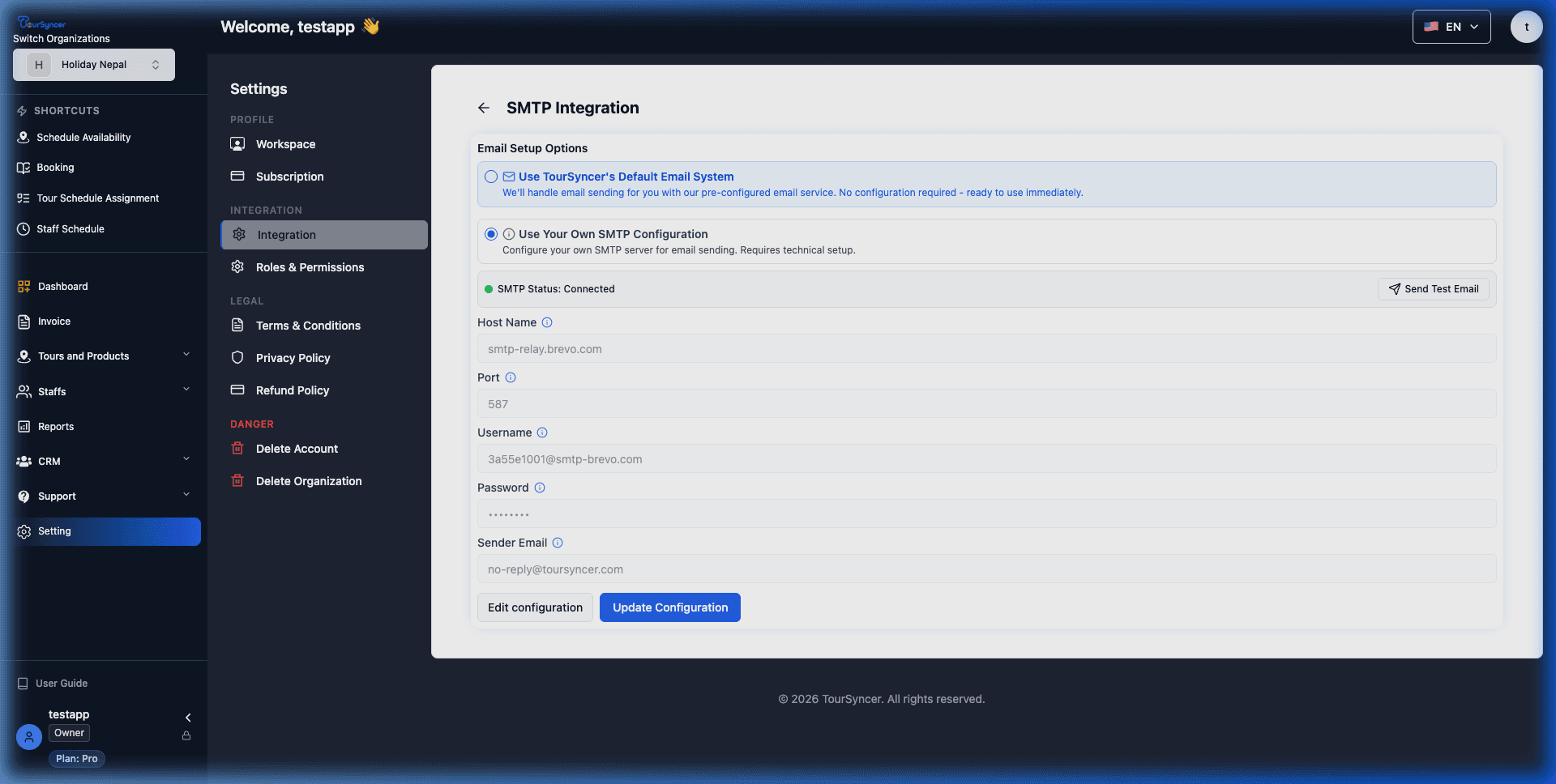
SMTP Configuration: Setting Up Your Email System
TourSyncer allows you to choose between using our default email system or integrating your own custom SMTP server. This ensures that all outgoing communications from your organization are reliable and professional.
Steps:
📫 Option 1: TourSyncer Default SMTP
TourSyncer provides a built-in email infrastructure that is ready to use immediately. This is the default setting for all new organizations.
Key Features:
•Zero configuration required
•High deliverability rates
•Includes basic email quotas per month
•Recommended for small to medium businesses
⚙️ Option 2: Custom SMTP Configuration
If you have your own email server (like Brevo, SendGrid, Amazon SES, or your own hosting provider), you can integrate it for full control over your sender reputation and branding.
Step 1: Navigate to Integration Settings
•Sidebar: Click "Settings" (gear icon) → "Integration"
•Direct URL: /setting?value=integration
Step 2: Access SMTP Integration
•Locate the "SMTP Integration" card
•Click on the card to open the configuration panel
Step 3: Enter Your Credentials
•Select "Use Your Own SMTP Configuration"
•Fill in the following required fields:
- Host Name: Your SMTP server address (e.g., smtp.gmail.com)
- Port: The port used by your server (e.g., 587 for TLS, 465 for SSL)
- Username: Your SMTP account username (usually your email address)
- Password: Your SMTP account password or API key
- Sender Email: The email address that will appear in the "From" field (e.g., [email protected])
Step 4: Save & Verify
•Click the "Save Configuration" button
•The system will automatically attempt to connect to your SMTP server
•Success: You will see "SMTP configuration saved successfully!" and the status will update to "Connected"
🔔 Notifications Provided via SMTP
Once SMTP is correctly configured, the system will send the following automated notifications:
1. Booking Confirmations: Sent instantly to customers upon successful order or booking.
2. Staff Assignment Alerts: Notifies staff members when assigned to specific tours or schedules.
3. Payment Receipts/Invoices: Automatically delivers digital invoices to customers.
4. Schedule Updates: Alerts both staff and customers of any changes in tour timing.
5. Vendor Daily Summaries: Daily reports to organization admins regarding new activities.
⚠️ Security Note: Always use secure ports (587 or 465) and ensure your SMTP provider allows connections from external applications.
Video Tutorial
Click to enlarge
System Screenshot
Click to enlarge
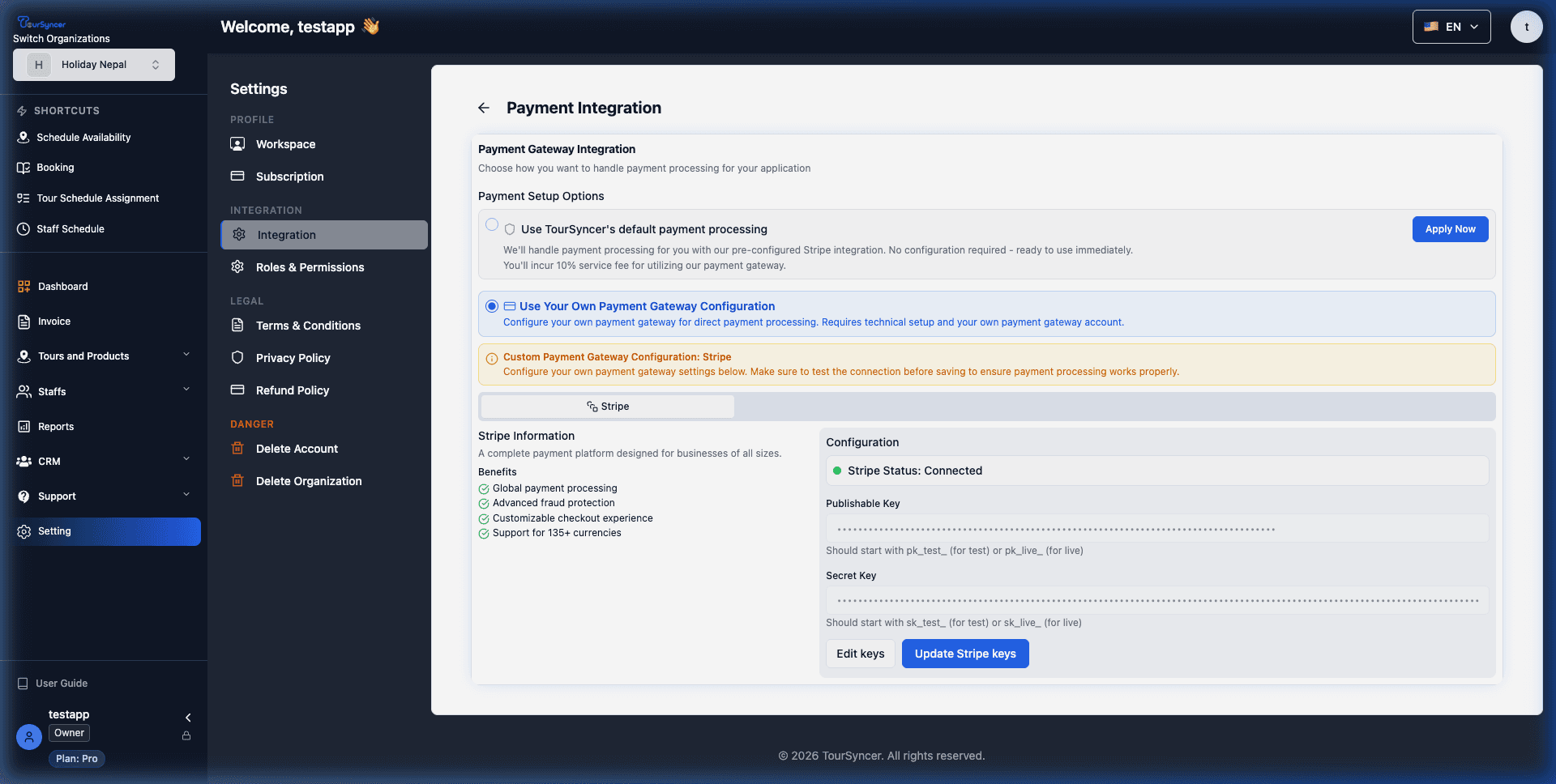
Stripe Payment Integration: Secure Your Transactions
TourSyncer integrates with Stripe, a leading global payment processor, to ensure safe and seamless transactions for your customers. You can use our default managed payments or integrate your own Stripe account for full control over your payouts.
Steps:
💳 Option 1: TourSyncer Default Payment Processing
TourSyncer offers a managed payment solution that allows you to start accepting bookings without setting up your own Stripe account.
Key Benefits:
•Quick activation with minimal technical setup
•Managed refund processing and dispute handling
•Automated payout schedules to your linked bank account
•Lower barrier to entry for new tour operators
How to Apply:
1. Navigate to Integration Settings
•Sidebar: Settings → Integration
•URL: /setting?value=integration
2. Locate the "Payment Integration" section
3. Click the "Apply Now" button under the default configuration options
4. Complete the brief application form with your business details
5. Our team will review your application within 24-48 hours
⚙️ Option 2: Custom Stripe Integration (Recommended for Growth)
For businesses that want full control over their transaction fees and payout schedules, you can use your own custom Stripe credentials.
Step 1: Get Your Stripe API Keys
•Log in to your Stripe Dashboard (dashboard.stripe.com)
•Navigate to Developers → API Keys
•Copy your "Publishable key" and "Secret key"
Step 2: Configure in TourSyncer
•Navigate to Settings → Integration
•Click on the "Payment Integration" card
•Select "Use Your Own Stripe Configuration"
•Click "Edit keys" to unlock input fields
•Enter your keys:
- Secret Key: sk_test_*****************************************
- Publishable Key: pk_test_*****************************************
•Click "Update Stripe keys" to save
🔔 Post-Setup Notifications & Features
Once Stripe is correctly configured, your system unlocks the following capabilities:
1. Payment Success Alerts: Automated emails sent to customers immediately after a successful transaction.
2. Instant Booking Confirmation: Tours are automatically marked as "Booked" once payment is verified.
3. Financial Dashboard: Real-time tracking of revenue, refunds, and pending payouts in your Stripe dashboard.
4. Webhook Synchronicity: TourSyncer automatically updates booking statuses based on Stripe payment events.
⚠️ Security Tip: Never share your Secret Key with anyone. TourSyncer stores it securely using industry-standard encryption.
Video Tutorial
Click to enlarge
System Screenshot
Click to enlarge

Create Tour Product: Step 1 - Basic Details
Start creating your tour product by filling in the essential information. This guide demonstrates creating a 3-day 'Kathmandu to Pokhara Adventure' multi-day tour package.
Steps:
📍 Navigate to Tour Creation
•From the sidebar, click on "Tours and Products"
•Select "Add Tour & Product" or navigate to /tour/add
•The tour creation form will load with a "Create Your Tour" header
📋 Enter Basic Information
•Tour Title (Required)
- Enter a descriptive, marketing-friendly name
- Example: "Kathmandu to Pokhara Adventure"
- Keep it concise but descriptive
•Destination (Required)
- Search and select the primary location
- Example: "Kathmandu, Nepal"
- This helps customers find tours by location
•Max Group Size (Required)
- Set the maximum number of participants per tour
- Example: 15 travelers
- Consider vehicle capacity and guide ratios
⏱️ Tour Type & Duration
Select from three tour types:
•Hourly: For short tours (e.g., 2-hour city walk)
•Single Day: Full day experiences (8-10 hours)
•Multi Day: Extended trips spanning multiple days
For Multi-Day Tours:
•Enter number of days (e.g., 3 days)
•System will create itinerary slots for each day
•Example: 3-day Kathmandu to Pokhara tour
📝 Tour Description
Write a compelling description:
•Start with the main experience highlight
•Mention key attractions and activities
•Include what makes this tour unique
Example Description:
"Scenic 3-day journey through Nepal's most stunning landscapes,
from the cultural heart of Kathmandu to the serene beauty of Pokhara."
✅ Click "Add a tour" to save basic details and proceed to the edit page
Video Tutorial
Click to enlarge
System Screenshot

Click to enlarge

Create Tour Product: Step 2 - Itinerary & Activities
After saving basic details, you'll be redirected to the tour edit page. Define the day-by-day itinerary with activities and stops for each day of your tour.
Steps:
📅 Navigate to Itinerary Details Tab
•After creating a tour, you are on the edit page with 7 tabs:
1. Basic Details (already completed)
2. Itinerary Details ← Click here
3. Tour Price
4. Tour Details
5. Schedule
6. Preview
7. Review
🗓️ Add Activities for Each Day
For each day of your multi-day tour:
1. Select the day tab (Day 1, Day 2, etc.)
2. Click "Add Itinerary" button
3. Fill in the activity/stop details
📍 Example: 3-Day Kathmandu to Pokhara Tour
Day 1: Kathmandu - Arrival & City Tour
•Activity: "Visit Pashupatinath Temple"
- Type: Activity
- Location: Pashupatinath Temple, Kathmandu
- Description: Explore the sacred Hindu temple complex
•Activity: "Explore Boudhanath Stupa"
- Location: Boudhanath Stupa, Kathmandu
- Description: Walk around the massive mandala stupa
•Stop: "Welcome dinner"
Day 2: Scenic Drive to Pokhara
•Stop: "Breakfast at hotel"
•Activity: "Scenic mountain drive"
- 6-hour journey along Prithvi Highway
•Activity: "Manakamana Temple cable car (optional)"
•Stop: "Lunch at riverside town"
Day 3: Pokhara Exploration & Departure
•Activity: "Sunrise at Sarangkot"
•Activity: "Phewa Lake boating"
•Activity: "World Peace Pagoda visit"
•Stop: "Airport transfer"
💡 Tips:
•Set appropriate times for each activity
•Include travel/driving segments as stops
•Add meal breaks where applicable
Video Tutorial
Click to enlarge
System Screenshot

Click to enlarge
Create Tour Product: Step 3 - Tour Pricing

Set up pricing for different age groups. TourSyncer supports multiple price bands for Adults, Children, and Infants with optional discount pricing.
Steps:
💳 Navigate to Tour Price Tab
Click on the "Tour Price" tab (3rd tab)
👨 Add ADULT Pricing
1. Click "Add Price Band" button
2. Select "ADULT" from the age band dropdown
3. Enter Original Price (e.g., $250 USD)
4. Optionally add a Discounted Price for promotions
👦 Add CHILD Pricing
1. Click "Add Price Band (Optional)" button
2. Select "CHILD" from the dropdown
3. Enter reduced price (e.g., $150 USD - 40% off adult price)
4. Child pricing typically covers ages 6-12
👶 Add INFANT Pricing (Free)
1. Click "Add Price Band (Optional)" button
2. Select "INFANT" from the dropdown
3. Enter $0 for free infant travel (ages 0-5)
💡 Pricing Tips:
•Research competitor pricing in your market
•Consider seasonal pricing variations
•Use discount prices for early bird promotions
•Clearly define age ranges for each category
Video Tutorial
Click to enlarge
System Screenshot

Click to enlarge
Create Tour Product: Step 4 - Tour Details (Highlights, Inclusions, Exclusions)
Add marketing content that helps customers understand the value of your tour. This is found in the Basic Details section below the main form.
Steps:
⭐ Add Tour Highlights
Highlights are key selling points displayed prominently:
1. Scroll down in Basic Details to find "Highlights"
2. Type a highlight and click "Add"
3. Repeat for each highlight
Example Highlights:
•"Mountain views"
•"Cultural sites"
•"Lake activities"
✅ Add Inclusions (What's Included)
List everything included in the tour price:
•Accommodation (hotels, lodges)
•Breakfast
•Transportation (vehicle, fuel)
•Professional Guide
•Entrance fees
•Insurance (if provided)
❌ Add Exclusions (Not Included)
Clearly state what is NOT included:
•Lunch/Dinner
•Personal expenses
•Travel insurance
•International flights
•Tips and gratuities
💡 Tip: Clear inclusions/exclusions prevent customer disputes
Video Tutorial
Click to enlarge
System Screenshot

Click to enlarge

Create Tour Product: Step 5 - Schedule Management
Set up tour schedules with specific dates, times, and available slots. Assign staff members (drivers, guides) to each scheduled departure.
Steps:
📅 Navigate to Schedule Tab
Click on the "Schedule" tab (5th tab)
➕ Add a New Schedule
1. Click "Add Schedule" button
2. Fill in the schedule details:
•Schedule Name: e.g., "December Trip"
•Date: Select departure date from calendar
•Start Time: e.g., 08:00 AM
•End Time: e.g., 06:00 PM
•Number of Slots: e.g., 15 (max participants)
👥 Assign Staff (Optional)
Assign team members to the schedule:
•Agent: Sales/operations representative
•Driver: Assigned vehicle driver
•Guide: Tour guide for the group
3. Click "+ Add Schedule" to save
💡 Tips:
•Create multiple schedules for different dates
•Monitor slot availability as bookings come in
•Staff can be reassigned as needed
Video Tutorial
Click to enlarge
System Screenshot

Click to enlarge

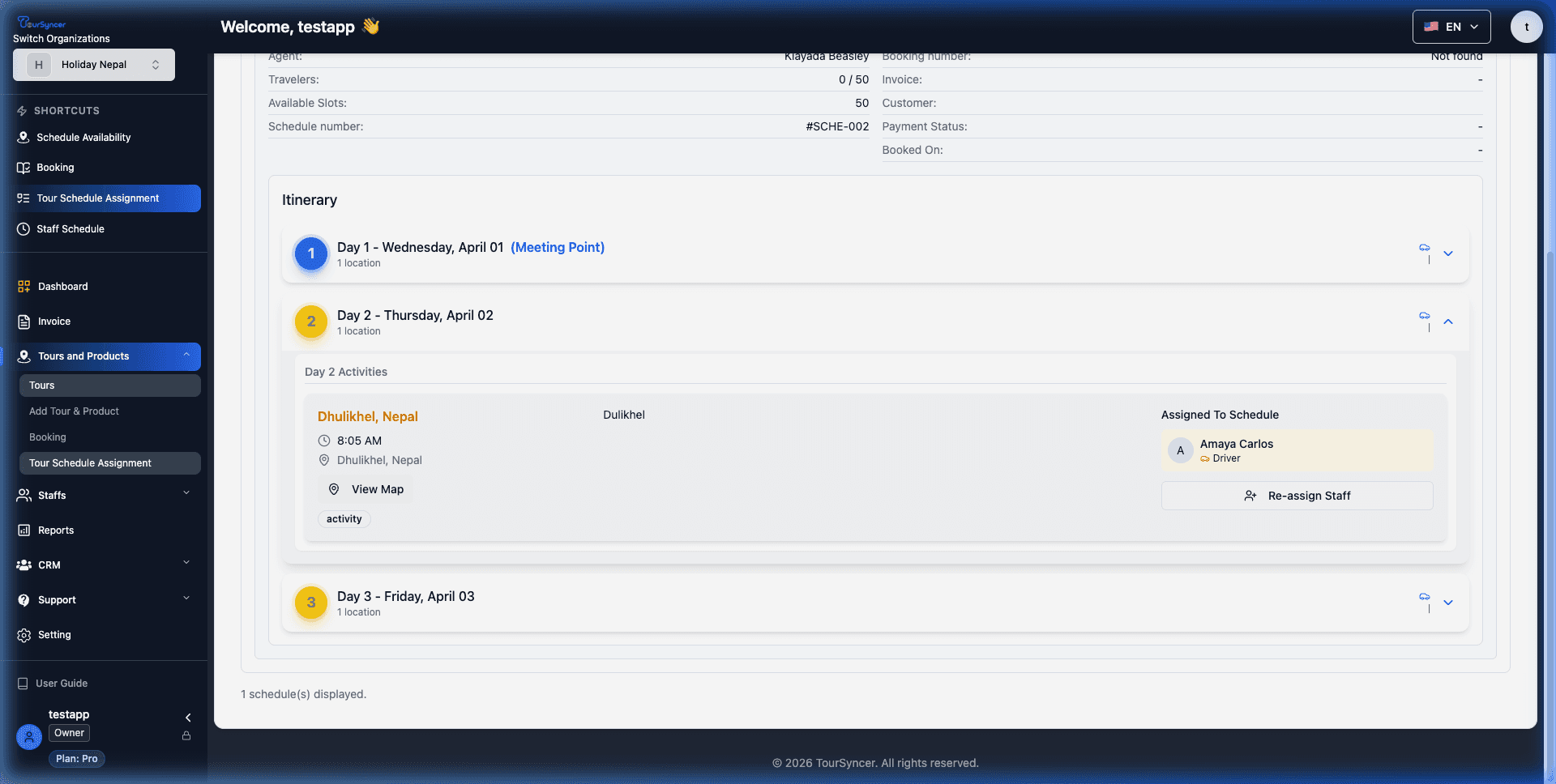
Tour Schedule Assignment Workflows
Easily assign guides and drivers to your tour schedules. This guide shows how to assign staff individually or perform batch assignments across multiple schedules.
Steps:
👤 Individual Staff Assignment
Assigning a driver and guide to a single tour schedule:
1. Navigate to "Tour Schedules" by selecting it from the sidebar
2. Alternative: Direct URL is /tour/schedule
3. Locate the schedule you want to assign staff to
4. Click on the "Assign" or "Edit" button for that schedule
5. In the assignment modal, use the "Driver" dropdown to select an available driver
6. Use the "Guide" dropdown to select an available guide
7. Click "Save" or "Apply" to confirm the assignments
🏢 Batch Staff Assignment
Assigning staff to multiple schedules simultaneously:
1. On the "Tour Schedules" page, use the checkboxes to select multiple schedules
2. Once multiple schedules are selected, click the "Batch Assign" button at the top of the list
3. The batch assignment modal will appear
4. Select the Driver and/or Guide you wish to assign to all selected schedules
5. Click "Confirm" or "Batch Assign" to apply the changes to all selected schedules
6. A success message will appear confirming the number of schedules updated
💡 Tips for Assignment:
•Ensure the selected staff members are available on the schedule dates
•Batch assigning is efficient for a single guide leading consecutive tours
•Staff members will receive notifications upon being assigned
Video Tutorial
Click to enlarge
System Screenshot
Click to enlarge
Create Tour Product: Step 6 - Preview & Review
Before publishing, preview how your tour will appear to customers and review all details for accuracy.
Steps:
👁️ Preview Tab
Click "Preview" tab (6th tab) to see:
•Tour title and description
•Pricing display with all age bands
•Itinerary breakdown by day
•Highlights, inclusions, exclusions
•Available schedule dates
This shows exactly how customers will see your tour.
✔️ Review Tab
Click "Review" tab (7th tab) for:
•Validation checklist of all required fields
•Status indicators for each section
•Missing information warnings
🚀 Update & Publish Options
Available actions:
•"Update Tour" - Save as draft (not visible to customers)
•"Preview Tour" - Open preview in new tab
•"Publish" - Make tour live and bookable
⚠️ Ensure all required fields are complete before publishing
Video Tutorial
Click to enlarge
System Screenshot

Click to enlarge
Group Management: Create Customer Groups & Send Targeted Communications
The Group Management feature allows you to organize customers into targeted segments for personalized marketing campaigns and bulk communications. Create custom groups based on customer preferences, booking history, or interests to deliver relevant messages and promotions. This powerful CRM tool helps you maintain customer relationships, increase engagement, and drive repeat bookings through strategic, privacy-focused email communications.
Steps:
👥 Access Group Management Dashboard
Step 1: Navigate to the Group Management page
•Sidebar Navigation: Click "CRM" in the left sidebar, then select "Groups"
•Direct URL: /group
•Your organization subdomain will be automatically included in the URL
Step 2: View Your Existing Groups
•The dashboard displays all customer groups in a grid or list view
•Each group card shows:
- Group name and description
- Member count (total customers in the group)
- Creation date
- Quick action buttons (Edit, Delete, Send Email)
•Use the search bar at the top to quickly find specific groups
•Filter groups by creation date or member count
➕ Create a New Customer Group
Step 1: Initiate Group Creation
•Click the "Add Group" or "+ Create Group" button in the top-right corner
•A modal dialog window will appear with the group creation form
Step 2: Enter Basic Group Information
•Group Name (Required):
- Enter a descriptive, memorable name for your group
- Best Practice: Use names that reflect the purpose or segment
- Good Examples:
→ "Summer 2024 Adventure Seekers"
→ "VIP Repeat Customers"
→ "Mountain Trekking Enthusiasts"
→ "Family Tour Customers"
→ "Holiday Special Promotion List"
→ "Newsletter Subscribers - Q1 2024"
•Organization (Auto-selected):
- Your current organization is automatically selected
- If managing multiple organizations, verify the correct one is selected
•Group Description (Optional but recommended):
- Add notes about the group purpose for future reference
- Example: "Customers interested in hiking tours who booked in 2023"
👤 Add Members to Your Group
Step 3: Select Group Members
•The modal displays a searchable list of all your customers
•Each customer entry shows:
- Full name
- Email address
- Phone number (if available)
- Previous booking count
•Selection Methods:
Option A - Manual Selection:
→ Browse through the customer list
→ Check the checkbox next to each customer you want to add
→ Selected customers are highlighted or marked
Option B - Search & Add:
→ Use the search bar to find customers by name or email
→ Type partial names to filter results instantly
→ Check boxes for matching customers
Option C - Select All (if available):
→ Use "Select All" checkbox to add all visible customers
→ Useful for large groups or newsletter lists
•Member Count Indicator:
- The modal shows "X members selected" as you check boxes
- This helps you track group size in real-time
Step 4: Save the Group
•Review your selections to ensure accuracy
•Click the "Create Group" button to save
•A success notification will confirm group creation
•The modal will close and return you to the group list
•Your new group now appears in the dashboard with member count
✏️ Edit & Manage Existing Groups
Update Group Information:
1. Find the group you want to modify in the list
2. Click the "Edit" icon/button on the group card
3. The same modal appears with current group data pre-filled
4. Make your changes:
•Update the group name
•Add or remove members by checking/unchecking boxes
•Use search to find and add new members
5. Click "Save Changes" or "Update Group" to apply
Delete a Group:
•Click the "Delete" icon/button on the group card
•A confirmation dialog will appear
•Confirm deletion to permanently remove the group
•Note: This only deletes the group, not the customers themselves
📧 Send Bulk Email to Group Members
Step 1: Initiate Email Campaign
•Locate your target group in the list
•Click the "Send Email" icon (envelope icon) or button
•An email composer modal/page will open
Step 2: Understand the Email Fields
•From (Sender):
- Automatically set to your organization's business support email
- This is the email customers will see and can reply to
- Example: [email protected]
•To (Primary Recipient):
- Pre-filled with your staff/business email
- This is where replies will be received
- You can keep this or modify if needed
•Bcc (Blind Carbon Copy):
- Automatically populated with ALL group members' email addresses
- Privacy Feature: Recipients cannot see other recipients' emails
- Each customer receives the email individually
- Member count is displayed (e.g., "25 recipients in Bcc")
Step 3: Compose Your Email
•Subject Line (Required):
- Enter a compelling subject that grabs attention
- Best Practices:
→ Keep it under 50 characters
→ Be clear and specific
→ Include urgency or value proposition
- Good Examples:
→ "🌄 Exclusive 20% Off Mountain Tours This Weekend"
→ "Your Summer Adventure Awaits - Book Now & Save"
→ "Limited Spots: VIP Tour Package Just for You"
→ "Thank You! Special Offer for Our Valued Customers"
•Email Body (Required):
- Write your message content in the text editor
- Include a clear call-to-action (CTA)
- Recommended Structure:
1. Greeting (personalized if possible)
2. Main message/offer
3. Benefits or details
4. Clear call-to-action
5. Contact information
6. Unsubscribe option (if required)
•Rich Text Formatting (if available):
- Bold important text for emphasis
- Use bullet points for easy reading
- Add links to tour pages or booking forms
- Insert images or logos if supported
Step 4: Preview & Send
•Review your email carefully for:
- Spelling and grammar errors
- Correct links and formatting
- Appropriate tone and messaging
•Use "Preview" option if available to see how it looks
•When satisfied, click "Send Email" button
•Wait for confirmation message
•The system processes and sends emails to all group members
Step 5: Email Delivery
•Emails are sent individually to each member (not as one bulk email)
•Delivery may take a few minutes for large groups
•Each customer receives a personal copy
•Replies will come to your business support email
💡 Best Practices & Pro Tips
Group Segmentation Strategies:
•Behavioral Segments:
- "Past Customers" - Anyone who booked before
- "No-Shows" - Customers who canceled or didn't attend
- "High-Value Customers" - Customers with multiple bookings
•Interest-Based Segments:
- "Adventure Sports" - Hiking, climbing, extreme tours
- "Cultural Tours" - Museums, heritage sites, local experiences
- "Family-Friendly" - Kid-friendly tours and activities
- "Luxury Travel" - Premium, high-end tour customers
•Geographic Segments:
- "Local Residents" - Customers from your city/region
- "International Travelers" - Overseas customers
- "Regional Groups" - Group by country or state
•Seasonal Segments:
- "Summer Travelers" - Customers who booked in summer
- "Holiday Bookers" - Peak season customers
- "Off-Season Opportunities" - Target for low-season promotions
Email Campaign Ideas:
•Seasonal Promotions: Announce special holiday or summer offers
•New Tour Launches: Introduce new destinations or experiences
•Early Bird Discounts: Reward advance bookings
•Last-Minute Deals: Fill empty slots with flash sales
•Customer Appreciation: Thank loyal customers with exclusive perks
•Re-engagement: Win back customers who haven't booked recently
•Event Announcements: Share upcoming tours or special events
•Newsletter Updates: Share company news, travel tips, destinations
Privacy & Compliance:
•Bcc Protection: All group emails use Bcc to protect customer privacy
•Each recipient cannot see other recipients' email addresses
•This complies with privacy regulations (GDPR, CAN-SPAM, etc.)
•Consider adding an unsubscribe option in your emails
•Only email customers who have consented to marketing communications
Performance Tips:
•Keep groups manageable (under 500 members for best performance)
•Create multiple smaller groups rather than one massive list
•Regularly update groups to remove inactive customers
•Test emails by sending to yourself first
•Track which campaigns generate the most bookings
•A/B test different subject lines and messaging
⚠️ Important Notes:
•Email sending limits may apply based on your subscription plan
•Check your email integration settings if emails aren't sending
•Spam filters may block emails if sent too frequently
•Maintain list hygiene by removing bounced emails
•Never purchase email lists - only email existing customers
Video Tutorial

Click to enlarge
System Screenshot

Click to enlarge
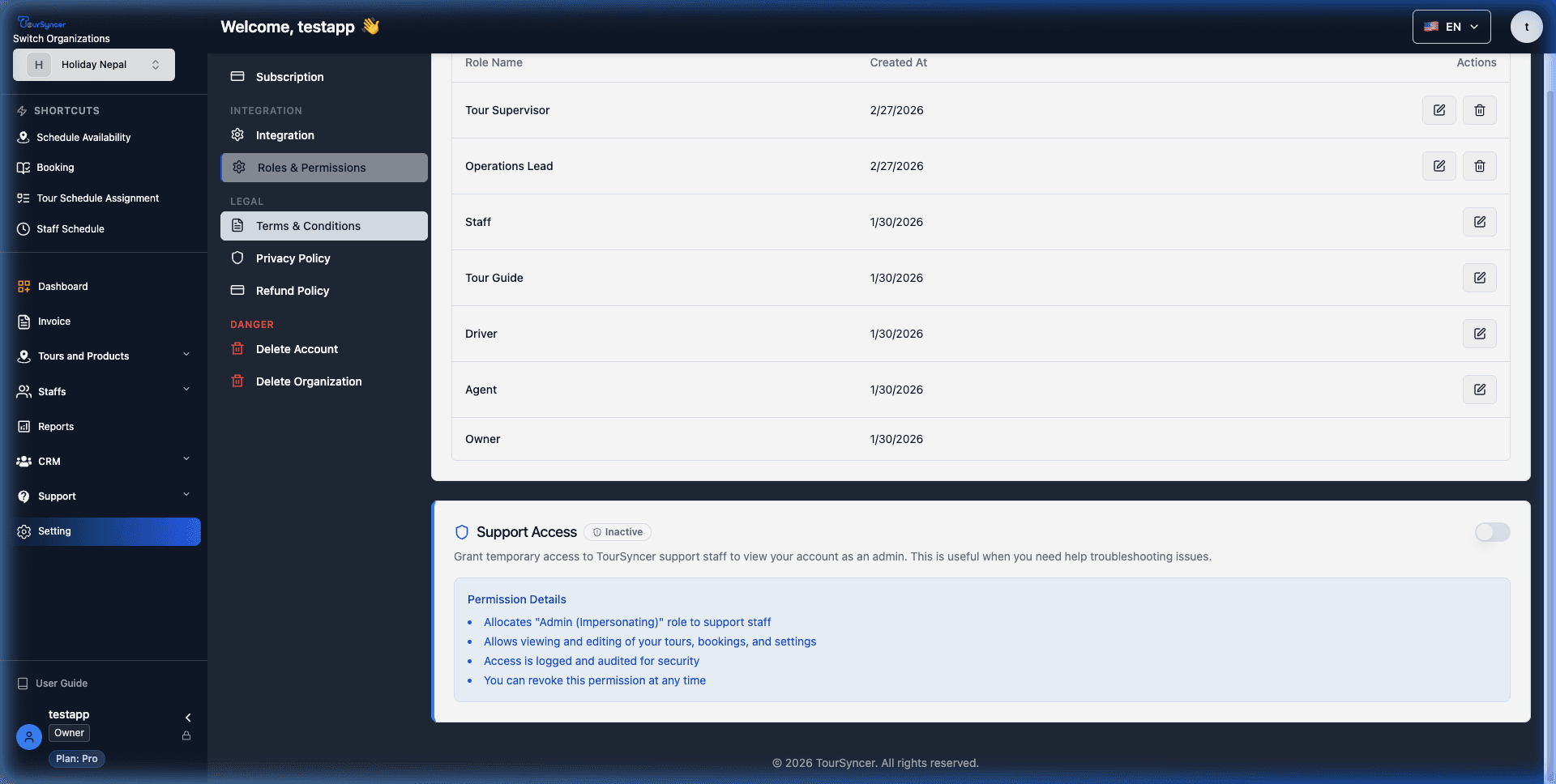
Role & Permission Management
TourSyncer's Role Management system allows you to create custom roles and define granular permissions for your staff members. This ensures that each team member has access only to the features they need for their specific job functions, enhancing security and operational efficiency.
Steps:
🔐 Access Roles & Permissions Settings
Step 1: Navigate to the Settings menu in the sidebar
Step 2: Select "Roles & Permissions" or navigate directly to /setting?value=role-permission
•You will see a list of existing roles (e.g., Staff, Tour Guide, Driver, Agent, Owner)
•Each role shows its creation date and available actions (Edit/Delete)
➕ Create a New Custom Role
Step 1: Click the "Create Role" button in the top-right corner
Step 2: Enter the "Role Name" (e.g., "Driver" or "Staff")
•Use a descriptive name that clearly identifies the job function
📋 Assign Detailed Permissions
Step 3: Define granular access for each system module:
•User Management: Create, view, edit, or delete users
•Tour Management: Complete control over tour products and publishing
•Booking Management: Manage orders, rescheduling, and cancellations
•Schedule Management: Edit tour schedules and assign staff types
•Staff Management: Control internal staff records and invitations
•System Settings: Access to sensitive organization-wide configurations
💡 Tip: Use the "Select All" checkbox for quick full-module access, or check individual boxes for restricted roles
Step 4: Click the "Create Role" button to save and activate the new role
👥 Assign Role to Staff Members
Step 1: Navigate to the "Staffs" menu in the sidebar
Step 2: Click "Add Staff" or edit an existing staff member
Step 3: In the "Role" dropdown menu, select your newly created custom role
Step 4: Save the staff record to apply the permissions instantly
Video Tutorial
Click to enlarge
System Screenshot
Click to enlarge
Staff Schedule Views

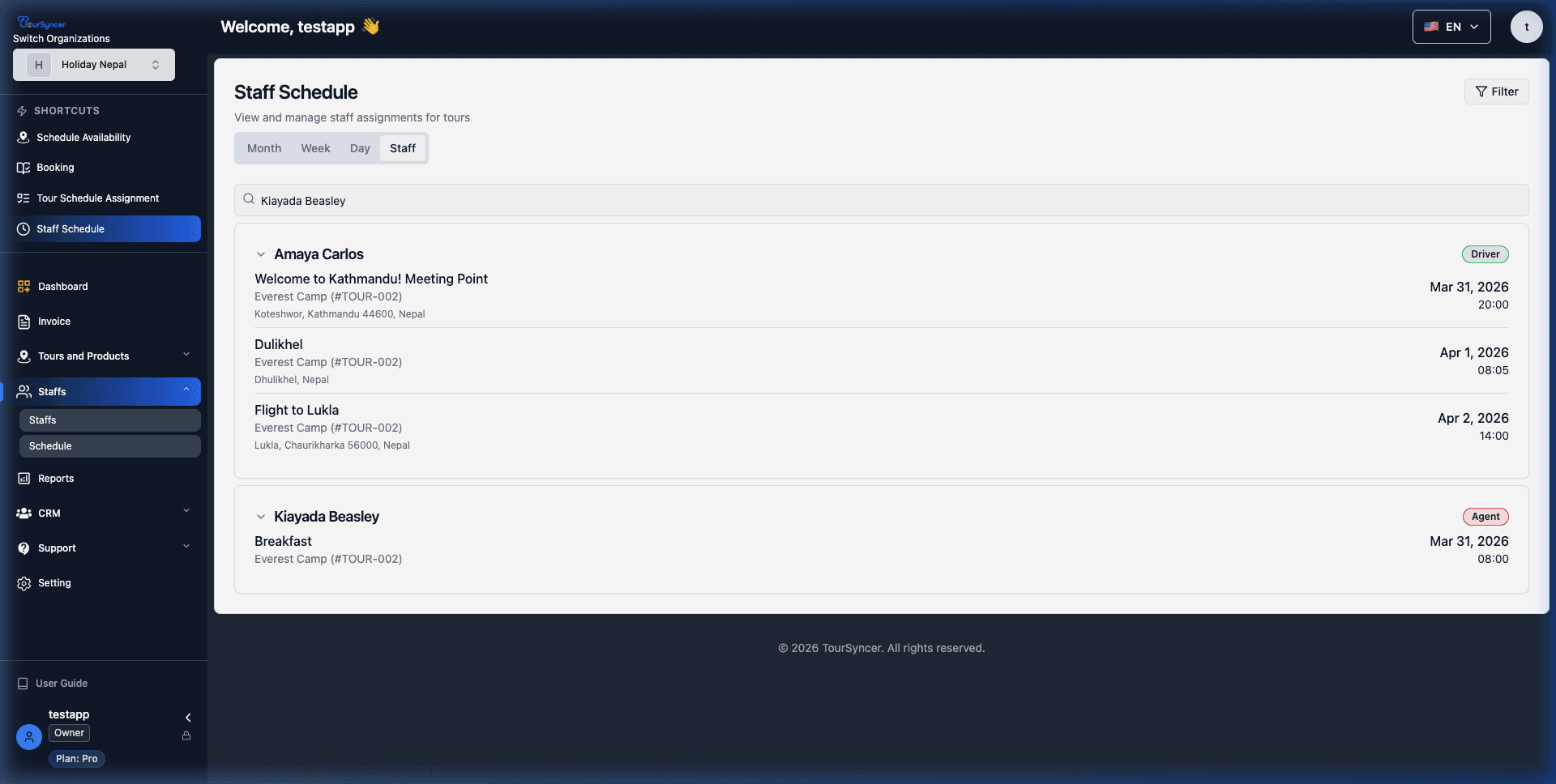
Monitor and manage your team's assignments across different timeframes. Switch between Monthly, Weekly, and Day views, or use the Staff Wise list to see individual assignments. Track assigned drivers and agents for each tour activity.
Steps:
📅 Access Staff Schedule
Step 1: Navigate to the "Staffs" menu in the sidebar
Step 2: Select "Time Schedule" to open the calendar view
•The schedule is organized into four main tabs: Weekly, Monthly, Day, and Staff
📊 Weekly View (Activity & Staff)
The Weekly view provides a high-level timeline of all activities:
•Activity View: Shows a horizontal timeline across the week
•Staff View: Toggle to see assignments grouped by individual staff members
•Click any activity block to see full details
📆 Monthly View
Step 1: Click the "Monthly" tab for a full calendar grid
Step 2: Look for days marked with "D" (Driver) or "A" (Agent) icons
Step 3: Click on a specific day (e.g., April 1st) to view the details panel at the bottom
•The panel listing shows all tours, activities, and the assigned team for that day
☀️ Day View
•Switch to "Day" view for an hourly breakdown of the current date
•Ideal for monitoring real-time operations and meeting points
👥 Staff Wise List View
•Click the "Staff" tab to see a vertical list of all staff members
•Each staff card displays their assigned tours and dates
•Use the search bar to find a specific staff member by name
🔍 Checking Driver & Agent Information
To verify who is assigned to a tour like 'Everest Camp (#TOUR-002)':
1. Search for the staff member (e.g., Amaya Carlos or Kiayada Beasley) in the search bar
2. Select 'Week' view and toggle 'Staff View' to see their weekly timeline
3. Check the Wednesday, April 1st column to see activities like Breakfast or Dulikhel
•Driver Assignment: Search for Amaya Carlos to see her April 1st Driving schedule
•Agent Assignment: Search for Kiayada Beasley to see her April 1st Agent schedule
•The filtered view will show their specific assigned events across the calendar
💡 Pro Tip: Use the search filter in any of the schedule views to quickly find all upcoming activities for a specific staff member.
Video Tutorial
Click to enlarge
System Screenshot
Click to enlarge
Manage Tours: View & Edit Tour Products
Access your tour list to view, edit, duplicate, or manage all your tour products from one central location.
Steps:
📋 Navigate to Tour List
•From sidebar, click "Tours and Products"
•Or navigate directly to /tour
📊 Tour List Features
Each tour card displays:
•Tour title and destination
•Status badge (Draft, Published, etc.)
•Tour type and duration
•Pricing summary
✏️ Edit a Tour
To edit an existing tour:
1. Find the tour in the list
2. Click on the tour card or "Edit" button
3. You will be taken to /tour/edit/[id]
4. Make your changes in any tab
5. Click "Update Tour" to save
💡 Tips:
•Filter tours by status (Draft/Published)
•Use search to find specific tours
•Draft tours are not visible to customers
Video Tutorial
Click to enlarge
System Screenshot

Click to enlarge
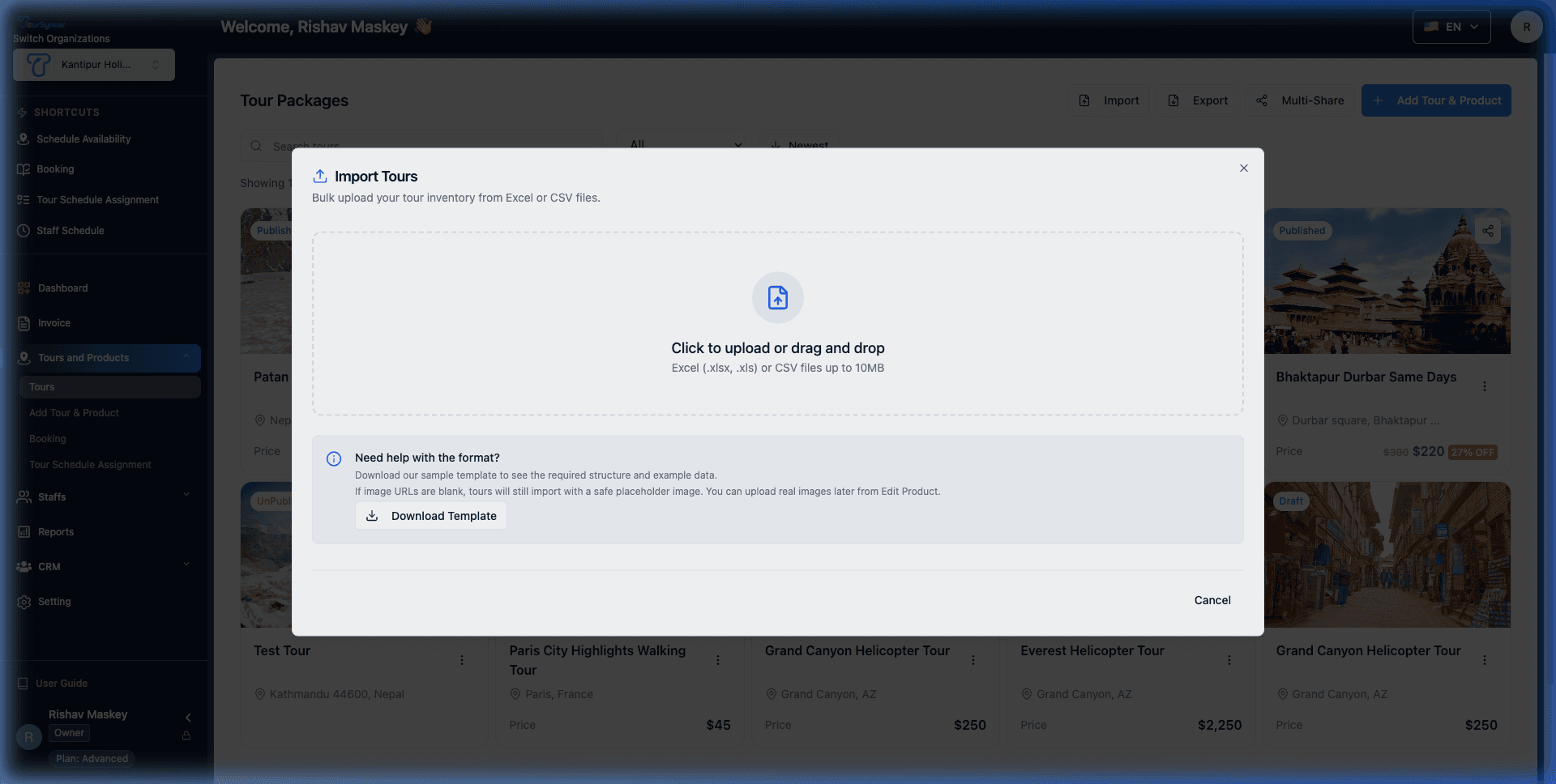
Import Tour Product: Bulk Upload Guide
Save time by bulk uploading multiple tour products using our specialized import tool. This process allows you to add titles, descriptions, categories, and pricing in one go. Our system automatically handles duplicates and validates your data.
Steps:
📥 Navigate to Tour Import
1. From the sidebar, click on "Tours and Products"
2. Select "Tours" to view your tour list
3. Click the "Import" button located at the top right of the page
📄 Prepare Your Import File
1. In the Import modal, click "Download Template" to get the correct structure
2. Open the downloaded Excel file (tour_import_template.xlsx)
3. Fill in your tour details following the column headers:
•Title: Your tour name (Required)
•Category: Must match an existing category in the system
•Description: Markdown supported for rich text
•Duration & Group Size: Set capacity and length
•Base Price: Your default tour cost
📤 Upload and Finalize
1. Drag and drop your completed file into the upload zone
2. The system will automatically validate your data and map columns
3. Review the Mapping step to ensure all fields are correctly linked
4. Preview your tours in the final step to check for any formatting issues
5. Click "Confirm & Import Now" to process all tours
6. Your new products will appear immediately in the Tour List
💡 Pro Tips:
•Use the latest template to avoid column mapping errors
•Images: You can provide public image URLs in the "Images" column (semicolon separated)
•If you leave images blank, a high-quality placeholder will be used
•Subscription Limits: The system will notify you if your import exceeds your current plan limits.
•Success: If you encounter an error, check that your Excel file matches the template structure perfectly.
Video Tutorial
Click to enlarge
System Screenshot
Click to enlarge
Invoice Creation & Payment Collection - Complete Guide
Master the complete invoicing workflow in TourSyncer. Learn how to create invoices for different scenarios, understand invoice types, collect payments through multiple methods (card, cash, payment link), and how all financial details are calculated and tallied automatically.
Steps:
📊 Understanding Invoice Types in TourSyncer
TourSyncer supports three distinct invoice types, each designed for specific business scenarios:
🧾 Type 1: Booking Invoice (Auto-Generated)
•Created automatically when a customer makes a tour booking
•Linked directly to a specific tour schedule and customer
•Line items are pre-populated based on tour pricing (Adult, Child, Infant rates)
•Includes tour details, schedule date/time, and participant information
•Best for: Regular tour bookings through your online booking system
🎫 Type 2: Tour Product Invoice (Manual Booking)
•Created when staff manually books a customer for a tour
•Allows selection of existing tour products and schedules
•Automatically pulls pricing from the selected tour
•Staff can adjust quantities for different age bands
•Best for: Walk-in customers, phone bookings, or agent-assisted bookings
📄 Type 3: Standalone Custom Invoice
•Fully manual invoice not tied to any tour product
•Allows completely custom line items with manual pricing
•Flexible for any service or product your business offers
•Can include multiple unrelated items in one invoice
•Best for: Additional services, merchandise sales, custom packages, consultation fees
🧾 METHOD 1: Invoice for an Existing Booking
When a customer has already made a booking, an invoice is automatically created.
Follow these steps to view and manage it:
Step 1: Access the Booking
•Navigate to "Bookings" in the sidebar
•Browse or search for the booking using:
- Booking ID (e.g., BOK-002, BOK-145)
- Customer name
- Tour name
- Booking date
•Click on the Booking ID to open the full booking details
Step 2: Navigate to Invoice Tab
•Within the booking details page, locate the tab navigation
•Click on the "Invoices" or "Payment" tab
•The invoice associated with this booking will be displayed
Step 3: Review Invoice Details
•Invoice Header Information:
- Invoice Number: Unique identifier (e.g., INV-2024-001)
- Invoice Date: When the invoice was created
- Due Date: Payment deadline
- Payment Status: Unpaid, Partially Paid, Paid, Overdue
•Customer Information:
- Customer name and email
- Phone number
- Billing address (if provided)
•Tour Information:
- Tour name and description
- Schedule date and time
- Meeting point location
•Line Items Breakdown:
- Adult Tickets: Quantity × Unit Price = Line Total
- Child Tickets: Quantity × Unit Price = Line Total
- Infant Tickets: Quantity × Unit Price = Line Total
- Any additional services or add-ons
Step 4: Understanding the Financial Tally
•Subtotal: Sum of all line items before discounts
•Discount Applied: Percentage or fixed amount reduction (if any)
•Grand Total: Final amount customer needs to pay
•Amount Paid: Money already received
•Balance Due: Remaining amount to be collected
📝 Example Calculation:
Adult Tickets: 2 × $250 = $500
Child Tickets: 1 × $150 = $150
Infant Tickets: 1 × $0 = $0
Subtotal: $650
Discount (10%): -$65
Grand Total: $585
📦 METHOD 2: Create Tour Product Booking Invoice
Use this method when manually booking a customer for an existing tour product.
Step 1: Initiate New Booking
•Navigate to "Bookings" from the sidebar
•Click the "+ New Booking" or "Create Booking" button
•A booking creation form/wizard will open
Step 2: Select or Create Customer
•Search for Existing Customer:
- Type customer name or email in the search field
- Select from the dropdown of matching results
- Customer details auto-populate
•Or Create New Customer:
- Click "+ New Customer" link
- Fill in required fields:
→ Full Name (Required)
→ Email Address (Required)
→ Phone Number (Recommended)
→ Address (Optional)
- Click "Save & Continue"
Step 3: Select Tour Product
•Browse available tour products or use search
•Filter by:
- Destination
- Tour type (Hourly, Single Day, Multi-Day)
- Category
•Click on the desired tour to select it
•Tour details and pricing are displayed
Step 4: Choose Schedule & Date
•Select from available tour schedules
•Calendar shows:
- Available dates (highlighted)
- Unavailable/fully booked dates (grayed out)
- Number of remaining slots for each date
•Pick the specific departure date
•Select start time (if multiple time slots available)
Step 5: Specify Number of Participants
•Use quantity selectors for each age band:
- Adults: Enter number of adult participants
- Children: Enter number of children (usually ages 6-12)
- Infants: Enter number of infants (usually ages 0-5)
•Real-time pricing updates as you adjust quantities
•System validates against maximum group size
📊 Automatic Price Calculation:
•System pulls pricing from the selected tour:
- Adult rate: As defined in tour pricing
- Child rate: Typically 40-60% of adult rate
- Infant rate: Often free or minimal charge
•Each age band is added as a separate line item
•Subtotal automatically calculates
Step 6: Add Custom Items or Adjustments (Optional)
•Click "+ Add Line Item" to include extras:
- Equipment rental (e.g., "Hiking boots rental - $20")
- Meal upgrades (e.g., "Premium lunch - $25")
- Transportation (e.g., "Airport pickup - $30")
- Insurance (e.g., "Travel insurance - $15")
•For each custom item, enter:
- Item name/description
- Quantity
- Unit price
•Apply Discounts (if applicable):
- Early bird discount
- Group discount
- Promotional code
- Loyalty discount
•Choose discount type:
- Percentage (e.g., 15% off)
- Fixed amount (e.g., $50 off)
Step 7: Review Total & Create Booking
•Review the complete invoice breakdown
•Add internal notes (visible only to staff)
•Add customer-facing notes or terms
•Set payment due date
•Click "Create Booking" or "Save Booking"
•Invoice is generated automatically and linked to the booking
📄 METHOD 3: Create Standalone Custom Invoice
Perfect for billing customers for services not tied to specific tour products.
Step 1: Access Invoice Creation
•Navigate to "Invoices" in the sidebar menu
•Click "+ Create Invoice" or "+ Manual Invoice" button
•Alternatively, go to direct URL: /invoice/create
Step 2: Select Customer
•Customer Search Field:
- Start typing customer name or email
- Select from dropdown of matching customers
•If customer doesn't exist:
- Click "+ Add New Customer"
- Enter customer details in the quick-add form
- Save and proceed
Step 3: Build Invoice Line Items
•Click "+ Add Line Item" button
•For each line item, enter:
🔹 Item Description (Required):
- Be specific and descriptive
- Examples:
→ "Mountain Trekking Guide Service - 3 Days"
→ "4WD Vehicle Rental with Driver"
→ "Photography Package - Professional Tour Photos"
→ "Accommodation - 2 Nights Premium Hotel"
→ "Consultation Fee - Custom Itinerary Planning"
🔹 Quantity:
- Number of units
- Examples: 3 days, 2 nights, 1 package
🔹 Unit Price:
- Price per single unit
- Enter amount in your default currency
•Add Multiple Line Items:
- Click "+ Add Line Item" again for each additional item
- Build a comprehensive invoice with all services
📊 How Line Totals are Calculated:
•Line Total = Quantity × Unit Price
•Example:
Item: "Guide Service - Full Day"
Quantity: 5 days
Unit Price: $120
Line Total: 5 × $120 = $600
Step 4: Apply Discounts (Optional)
•Locate the "Discount" section below line items
•Choose discount type:
📌 Percentage Discount:
- Select "Percentage (%)"
- Enter percentage value (e.g., 10 for 10% off)
- Discount applies to subtotal
- Discount Amount = Subtotal × (Percentage ÷ 100)
📌 Fixed Amount Discount:
- Select "Fixed Amount"
- Enter dollar amount (e.g., $50)
- Fixed amount deducted from subtotal
•Discount Reasons (for internal tracking):
- Early booking discount
- Repeat customer loyalty
- Group size discount
- Seasonal promotion
- Compensatory discount for service issue
Step 5: Set Payment Terms
•Invoice Date: Defaults to today, can be changed
•Due Date Options:
- Due on receipt
- Net 7 days
- Net 15 days
- Net 30 days
- Custom date
•Payment Terms Text:
- Add custom payment instructions
- Example: "Payment due within 7 days of invoice date"
Step 6: Add Notes & Terms
•Customer Notes (visible on invoice):
- Special instructions
- Thank you message
- Service details
•Internal Notes (staff only):
- Internal references
- Special handling instructions
- Billing reminders
•Terms & Conditions:
- Cancellation policy
- Refund policy
- Liability disclaimers
Step 7: Review Invoice Summary
•Before creating, review:
📋 Complete Invoice Breakdown:
┌─────────────────────────────────────────┐
│ Line Items: │
│ Item 1: Qty × Price = Line Total │
│ Item 2: Qty × Price = Line Total │
│ Item 3: Qty × Price = Line Total │
├─────────────────────────────────────────┤
│ Subtotal: [Sum of all line totals] │
│ Discount: -[Discount amount] │
├─────────────────────────────────────────┤
│ GRAND TOTAL: [Final amount] │
└─────────────────────────────────────────┘
Step 8: Create & Send Invoice
•Click "Create Invoice" button
•Success notification appears
•Invoice is saved and assigned an invoice number
•You're ready to collect payment
💳 PAYMENT COLLECTION OPTIONS
TourSyncer offers three flexible payment collection methods to accommodate different customer preferences and business situations.
💳 OPTION A: Collect Payment via Credit/Debit Card
Process card payments securely using integrated Stripe payment processing.
📍 When to Use Card Payment:
•Online bookings where customer enters card details remotely
•In-person bookings at your office with card terminal
•Customers prefer card for points/rewards
•International customers without local cash
•Ensuring instant payment confirmation
🔧 How Card Payments Work:
Step 1: From Invoice, Click "Collect Payment"
•Open the invoice you want to collect payment for
•Click the "Collect Payment" or "Pay Now" button
•Select "Card Payment" option
Step 2: Payment Method Selection
•System redirects to secure Stripe payment page
•Customer sees:
- Your organization name
- Invoice amount
- Invoice details
- Secure card entry form
Step 3: Customer Enters Card Information
•Card Number: 16-digit card number
•Expiry Date: MM/YY format
•CVC/CVV: 3-digit security code
•Cardholder Name: Name on card
•Billing Address: Postal code or full address
Step 4: Card Validation & Authorization
•Stripe validates card details in real-time
•Performs anti-fraud checks
•Contacts card issuer for authorization
•May trigger 3D Secure authentication for additional security
Step 5: Payment Processing
•If approved:
- Payment is captured immediately
- Invoice status updates to "Paid"
- Customer receives email receipt
- You receive payment confirmation
- Funds deposited to your Stripe account
•If declined:
- Error message displayed to customer
- Common reasons: insufficient funds, expired card, incorrect details
- Customer can retry with different card
- Invoice remains unpaid
Step 6: Automatic Record Keeping
•Payment record automatically created in TourSyncer
•Invoice marked as "Paid" with payment date
•Transaction ID stored for reference
•Payment details logged in customer history
•Accounting records updated
💡 Card Payment Features:
•Supports all major cards: Visa, Mastercard, American Express, Discover
•International card processing
•Multi-currency support (based on your Stripe settings)
•Automatic currency conversion
•PCI-DSS compliant (highest security standard)
•Instant payment confirmation
•Automated reconciliation
⚠️ Important Notes for Card Payments:
•Stripe processing fees apply (typically 2.9% + $0.30 per transaction)
•Fees automatically deducted from payout
•Refunds must be processed through Stripe
•Chargebacks handled through Stripe dashboard
•Payment disputes require supporting documentation
💵 OPTION B: Record Cash Payment
Record offline cash payments for proper accounting and invoice tracking.
📍 When to Use Cash Payment:
•Customer pays in person with physical cash
•Walk-in customers at your office/location
•Customers prefer cash over card
•Local markets where cash is standard
•Avoiding card processing fees
•Meeting customers at tour starting point
🔧 How to Record Cash Payments:
Step 1: Access Invoice Payment Options
•Navigate to the unpaid invoice
•Methods to access:
- From Invoices list: Click invoice number
- From Booking details: Go to Invoices tab
- From Customer profile: View customer invoices
•Locate "Record Payment" or "Mark as Paid" button
Step 2: Select Cash Payment Method
•Click "Record Payment" button
•Payment method modal/form appears
•Select "Cash" from payment method dropdown
Step 3: Enter Payment Details
•Payment Amount:
- Defaults to full invoice amount
- Can enter partial amount for partial payment
- System calculates remaining balance
•Payment Date:
- Defaults to today's date
- Can backdate if recording past payment
- Use calendar picker to select date
•Reference Number (Optional):
- Your internal receipt number
- Cash register transaction ID
- Any tracking reference
•Payment Notes (Optional but recommended):
- "Received cash at office"
- "Paid at tour meeting point"
- "Cash collected by agent [name]"
- Bill denominations if relevant
Step 4: Confirm Cash Receipt
•Review all entered details
•Click "Record Cash Payment" or "Confirm Payment"
•System processes the payment record
Step 5: System Updates
•Invoice status updates immediately:
- If full amount paid: Status = "Paid"
- If partial amount: Status = "Partially Paid"
- Remaining balance displayed
•Automatic actions triggered:
- Payment receipt generated
- Email receipt sent to customer (if configured)
- Booking status updated to "Confirmed"
- Payment logged in customer history
- Financial reports updated
Step 6: Print Receipt (Optional)
•After recording payment, option to print receipt
•Click "Print Receipt" button
•Receipt includes:
- Payment amount and date
- Invoice details
- Payment method (Cash)
- Reference number
- Your organization details
•Provide physical copy to customer
💡 Partial Cash Payments:
•If customer pays partial amount:
- Enter the exact amount received
- Invoice shows "Partially Paid" status
- Balance due clearly displayed
- Can record additional cash payments later
- Multiple payment records tracked separately
📊 Cash Payment Tracking Example:
Invoice Total: $500
Payment 1 (Cash - Jan 5): $300
Balance: $200
Payment 2 (Cash - Jan 12): $200
Status: Fully Paid
⚠️ Best Practices for Cash Payments:
•Count cash carefully in front of customer
•Record payment immediately after receiving
•Issue receipt to customer for their records
•Store cash securely in cash register/safe
•Reconcile cash payments daily with physical cash
•Add detailed notes for audit trail
•For large amounts, consider deposit verification
•Follow your local tax regulations for cash reporting
🔗 OPTION C: Generate & Send Payment Link
Send secure payment links to customers so they can pay online at their convenience.
📍 When to Use Payment Links:
•Remote customers booking by phone or email
•Customers want to pay later from home
•Sending invoices to corporate clients
•Following up on unpaid invoices
•Customers not physically present
•International customers in different time zones
•Providing flexible payment options
🔧 How Payment Links Work:
Step 1: Access the Invoice
•Navigate to "Invoices" in sidebar
•Find the unpaid invoice you want to collect payment for
•Open the invoice details
Step 2: Generate Payment Link
•Look for "Generate Payment Link" or "Send Payment Link" button
•Click the button
•System generates unique secure payment URL
Step 3: Customize Email (if sending via email)
•Email composition interface appears
•Pre-filled fields:
- To: Customer's email address
- Subject: "Invoice #[INV-XXX] - Payment Request"
- Body: Professional email template
•Email Content Includes:
- Greeting with customer name
- Invoice summary (invoice number, amount, due date)
- Itemized list of services/products
- Prominent "Pay Now" button with link
- Alternative plain text link
- Payment instructions
- Your contact information
- Terms and conditions
•You can customize:
- Email subject line
- Personal message to customer
- Additional instructions
- Urgency notes for overdue invoices
Step 4: Send Payment Link
•Option A - Send via Email:
- Review email content
- Click "Send Email" button
- Email sent immediately to customer
- Confirmation message displayed
•Option B - Copy Link:
- Click "Copy Payment Link" button
- Secure URL copied to clipboard
- Share via:
→ SMS/Text message
→ WhatsApp or other messaging apps
→ Social media direct message
→ Phone conversation (read it out)
Step 5: Customer Receives & Opens Link
•Customer receives email/message
•Clicks "Pay Now" button or opens link
•Redirected to branded payment page hosted by TourSyncer
Step 6: Secure Payment Page
•Customer sees:
- Your organization name and logo
- Invoice number and date
- Complete itemized breakdown:
→ Individual line items with quantities and prices
→ Subtotal calculation
→ Applied discounts
→ Grand total
- Secure Stripe card payment form
- SSL encryption indicator (padlock icon)
Step 7: Customer Completes Payment
•Customer enters card information:
- Card number, expiry, CVC
- Billing details
•Clicks "Pay $[Amount]" button
•Stripe processes payment securely
•3D Secure authentication if required
Step 8: Payment Confirmation
•Upon successful payment:
- Customer sees success page
- "Payment Successful" message
- Receipt displayed on screen
- Option to download PDF receipt
- Booking confirmation details
Step 9: Automatic Notifications
•Customer receives:
- Email payment receipt (from TourSyncer)
- Stripe payment confirmation (from Stripe)
- Booking confirmation (with tour details)
•You receive:
- Email notification of payment received
- Details of transaction
- Customer and booking information
Step 10: System Auto-Updates
•Invoice status: "Unpaid" → "Paid"
•Payment record created automatically
•Booking status: "Pending" → "Confirmed"
•Tour schedule slot confirmed
•Financial reports updated
•Customer account history updated
💡 Payment Link Features:
•Links never expire (active until invoice is paid)
•Secure unique URL for each invoice
•Mobile-responsive payment page
•SSL encrypted transactions
•Real-time payment processing
•Can be reused if first attempt fails
•Automatically deactivates when invoice is paid
•Track who opened the link (view analytics)
📊 Tracking Payment Link Activity:
•From invoice details, view:
- "Payment link generated on [date]"
- "Payment link sent via email on [date]"
- "Payment link opened [X] times"
- "Last opened: [date/time]"
•Helps you follow up on unpaid invoices
🔄 Resending Payment Links:
•If customer didn't receive or lost the link:
- Open the invoice
- Click "Resend Payment Link"
- Same link is sent again (or generate new one)
- Add reminder message
⚠️ Payment Link Best Practices:
•Send links immediately after booking
•Include clear payment instructions
•Mention payment deadline in email
•Follow up on unpaid invoices after 24-48 hours
•For overdue invoices, send reminder with link
•Test the link yourself before sending
•Ensure customer email address is correct
🧮 UNDERSTANDING INVOICE CALCULATIONS
How TourSyncer automatically calculates and tallies invoice amounts:
📊 Calculation Flow:
Step 1: Line Item Totals
•Each line item calculated individually
•Formula: Line Total = Quantity × Unit Price
•Examples:
- Adult Tickets: 3 × $200 = $600
- Child Tickets: 2 × $120 = $240
- Guide Service: 1 × $150 = $150
Step 2: Subtotal
•Sum of all line item totals
•Formula: Subtotal = Σ(All Line Totals)
•Example: $600 + $240 + $150 = $990
Step 3: Discount Application
•Percentage Discount:
Formula: Discount Amount = Subtotal × (Discount % ÷ 100)
Example: $990 × (10% ÷ 100) = $99
•Fixed Discount:
Formula: Discount Amount = Fixed Value
Example: $50 discount
•After Discount: Subtotal - Discount Amount
•Example: $990 - $99 = $891
Step 4: Grand Total
•Final amount customer pays
•Formula: Grand Total = Subtotal - Discount
•Example: $990 - $99 = $891
📋 Complete Invoice Example:
━━━━━━━━━━━━━━━━━━━━━━━━━━━━━━━━━
Line Items:
1. Adult Tickets (3) × $200.00 = $600.00
2. Child Tickets (2) × $120.00 = $240.00
3. Private Guide (1) × $150.00 = $150.00
4. Equipment Rental (3) × $15.00 = $45.00
━━━━━━━━━━━━━━━━━━━━━━━━━━━━━━━━━
Subtotal: $1,035.00
Discount (10%): -$103.50
━━━━━━━━━━━━━━━━━━━━━━━━━━━━━━━━━
GRAND TOTAL: $931.50
━━━━━━━━━━━━━━━━━━━━━━━━━━━━━━━━━
💡 Automatic Rounding:
•All amounts rounded to 2 decimal places
•Follows standard financial rounding rules
•Ensures cent-accurate calculations
🔄 Partial Payment Tracking:
•Grand Total: $931.50
•Payment 1: -$500.00 (Paid on Jan 5)
•Balance Due: $431.50
•Payment 2: -$431.50 (Paid on Jan 10)
•Final Balance: $0.00 (Fully Paid)
📧 POST-PAYMENT AUTOMATION
What happens automatically after payment is received:
✅ Customer Notifications:
•Email payment receipt sent immediately
•Booking confirmation email with tour details
•PDF invoice attached to email
•Calendar invite for tour date (optional)
•Pre-tour reminder emails (configured in settings)
✅ Staff Notifications:
•Organization admin receives payment notification
•Assigned tour guide notified of confirmed booking
•Assigned driver notified (if applicable)
•Sales agent notified (if assigned to booking)
✅ System Updates:
•Invoice status: "Paid"
•Booking status: "Confirmed"
•Tour schedule: Slot count decremented
•Customer status: "Active booking"
•Payment record created in financial logs
•Revenue reports updated
•Accounting exports updated
📊 INVOICE STATUS DEFINITIONS
Understanding invoice statuses in TourSyncer:
🟡 Draft:
•Invoice created but not finalized
•Not sent to customer yet
•Can still edit all details
•Not visible in reports
🔵 Unpaid:
•Invoice finalized and sent to customer
•No payment received yet
•Within due date
•Payment pending
🟠 Partially Paid:
•Some payment received
•Balance still outstanding
•Shows amount paid and balance due
•Multiple payment records
🟢 Paid:
•Full payment received
•Invoice settled completely
•Balance is $0.00
•Booking confirmed
🔴 Overdue:
•Past due date
•Payment not received
•Requires follow-up
•May affect booking confirmation
⚫ Cancelled:
•Invoice voided
•Booking cancelled
•No payment required
•Refund processed (if applicable)
💡 BEST PRACTICES & PRO TIPS
✅ Invoice Creation Tips:
•Always verify customer contact information
•Use clear, descriptive line item names
•Set realistic payment due dates
•Add internal notes for staff reference
•Double-check calculations before finalizing
✅ Payment Collection Tips:
•Offer multiple payment methods for flexibility
•Send payment links immediately after booking
•For large amounts, consider deposit + balance structure
•Follow up on unpaid invoices promptly
•Keep customers informed of payment status
✅ Record Keeping Tips:
•Record cash payments immediately
•Always add payment notes for audit trail
•Issue receipts for all payments
•Reconcile payments daily
•Export financial reports regularly
✅ Customer Communication Tips:
•Send professional invoices with clear terms
•Include detailed breakdown of charges
•Provide payment instructions clearly
•Thank customers after payment
•Follow up with booking details
⚠️ Important Reminders:
•Customers receive automated email receipts upon successful payment

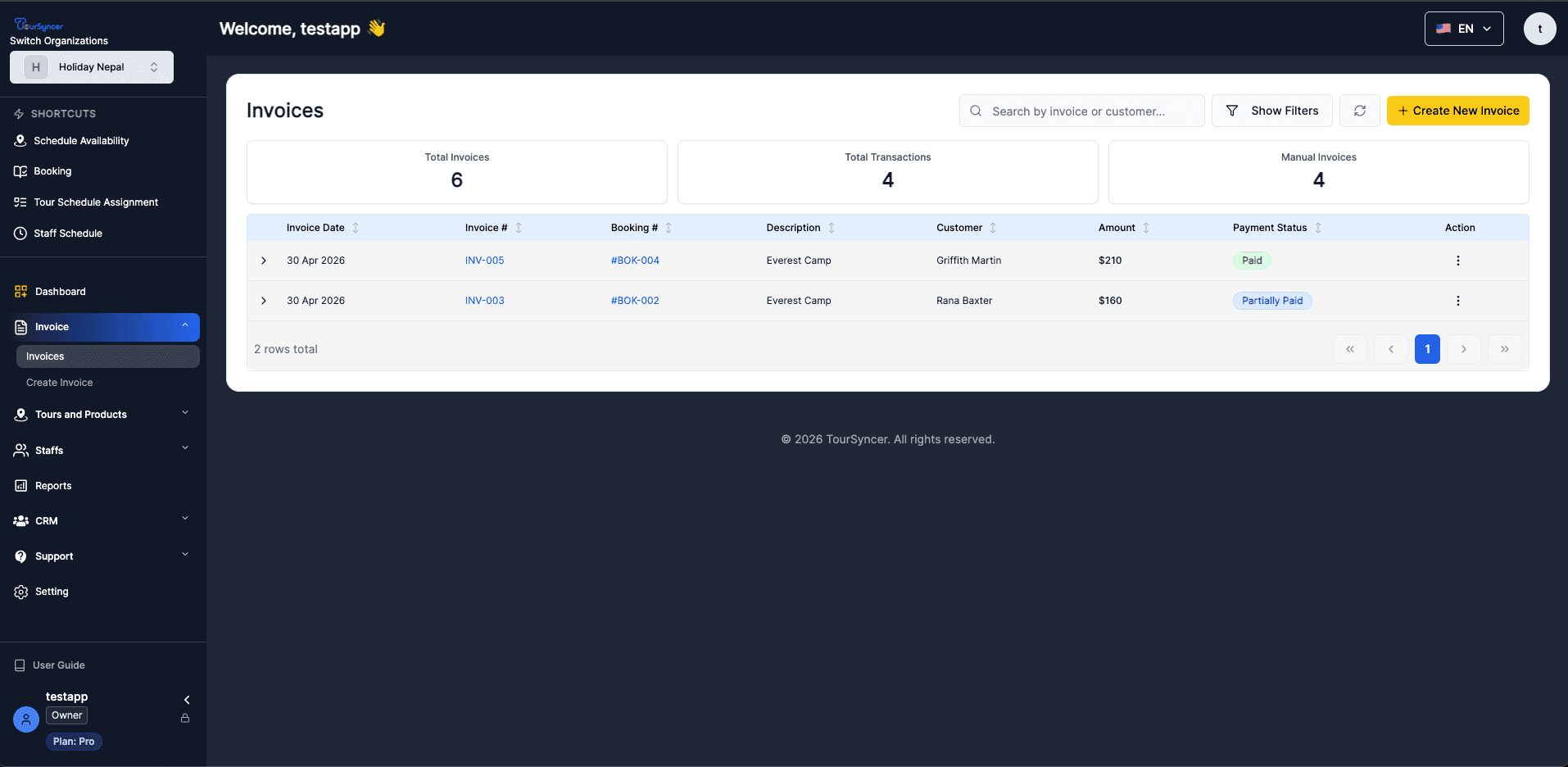
•You can track all invoice statuses (Paid, Pending, Overdue) from the Invoices dashboard
•Stripe fees are automatically deducted for card payments
•Cash payments require manual recording
•Payment links remain active until invoice is paid
•Always test payment links before sending to customers
•Keep payment records for tax and accounting purposes
Video Tutorial
Click to enlarge
System Screenshot
Click to enlarge
Troubleshooting Common Issues
Solutions for common issues you might encounter while using TourSyncer. Follow these steps to resolve problems quickly.
Steps:
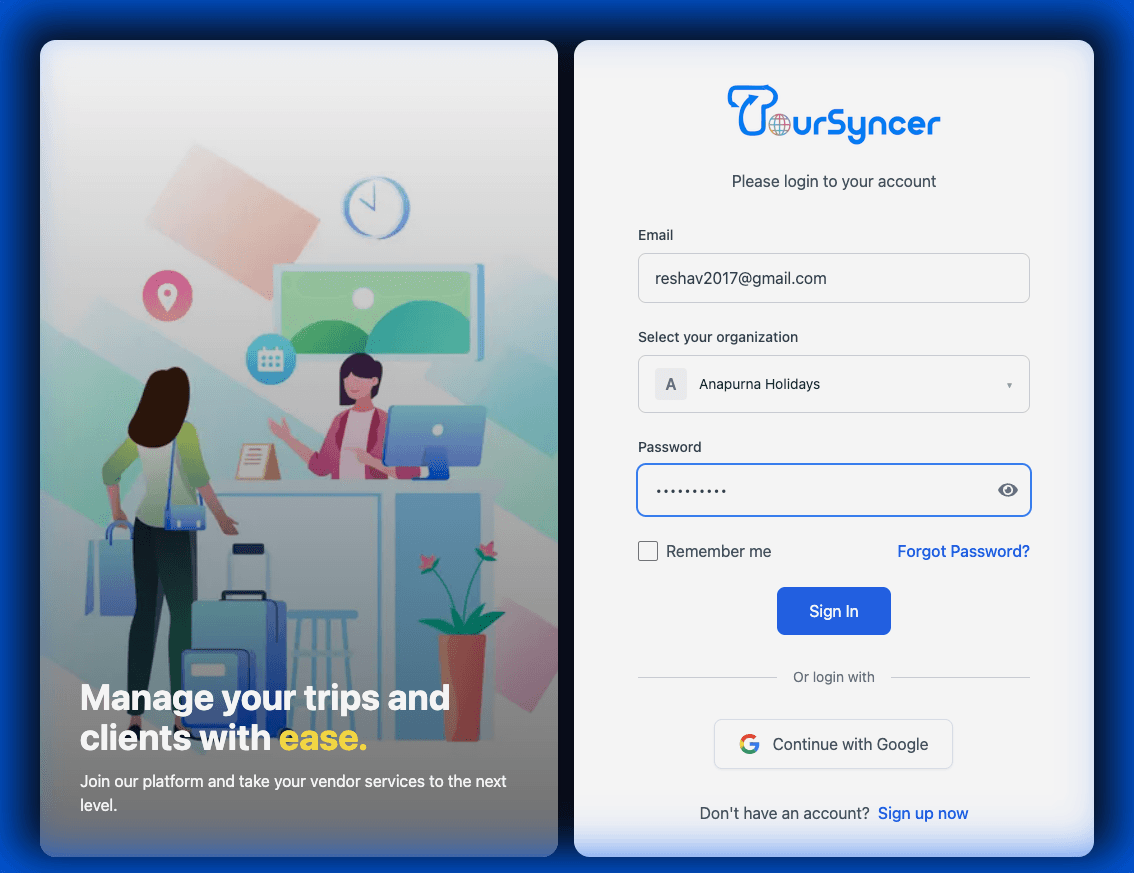
🔐 Login Issues
Problem: Cannot log in with correct credentials
Solutions:
•Ensure your email address is verified (check your inbox)
•Double-check that you're using the correct password
•Try resetting your password using "Forgot Password" link
•Clear your browser cache and cookies
•Try logging in with an incognito/private window
•Ensure your account hasn't been disabled
📧 Email Verification Issues
Problem: Verification email not received
Solutions:
•Check your Spam/Junk folder
•Wait 5-10 minutes as emails may be delayed
•Click "Resend Verification Email" on the verification screen
•Verify you entered the correct email address
•Check if your email provider is blocking TourSyncer emails
•Try using a different email address
🏢 Organization Creation Issues
Problem: Subdomain is already taken
Solutions:
•Try a different variation of your company name
•Add location identifiers (e.g., "company-nyc", "company-ca")
•Add numbers or year (e.g., "company2024")
•Use abbreviations or acronyms
Problem: Organization creation fails
Solutions:
•Ensure all required fields are filled
•Check that your email format is correct
•Verify your phone number includes country code
•Make sure you agreed to Terms & Conditions
•Check your internet connection
•Try refreshing the page and starting again
⏱️ Session Issues
Problem: Session expired or logged out unexpectedly
Solutions:
•This is normal for security - sessions expire periodically
•Simply log in again with your credentials
•Use "Remember me" to extend session duration
•Avoid leaving the page idle for extended periods
🌐 General Issues
Problem: Page not loading or errors
Solutions:
•Refresh the page (Ctrl+F5 or Cmd+Shift+R)
•Clear browser cache and cookies
•Try a different browser
•Check your internet connection
•Disable browser extensions temporarily
•Contact support if the issue persists
Video Tutorial
Click to enlarge
System Screenshot
Click to enlarge
Need more help?
Contact our support team for assistance.
We're here to help you succeed with TourSyncer.